ラジアルメニュー
ラジアルメニューは、コマンドを実行するための円形のインターフェースです。Plasticityで利用できるすべてのコマンドを実行できます。デフォルトでは、**「Selection mode」と「Viewport settings」**の2つのラジアルメニューが用意されています。さらに、ユーザー独自のラジアルメニューを作成することもできます。
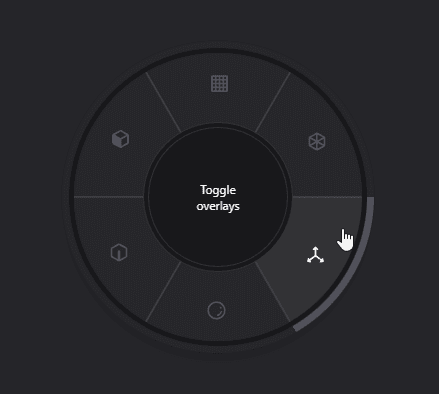
ラジアルメニューのセットアップ
デフォルトの**「Selection mode」および「Viewport settings」**ラジアルメニューを使用するには、セットアップが必要です。
- 次の2つのテキストファイルをダウンロードします。クリックするとテキストの内容が表示されます。右上の「Download」をクリックしてください。
- ダウンロードしたファイルをPlasticityの3Dビューポートにドラッグ&ドロップします。
- 画面上に目に見える変化はありませんが、ラジアルメニューの定義が読み込まれ、使用できる状態になります。
ラジアルメニューを呼び出すには、ショートカットを割り当てる必要があります。
- Fキーを押してコマンドパレットを開きます。
- コマンドパレットに「menu」と入力します。**「Radial Menu: Selection Mode」と「Radial Menu: Viewport Settings」**の項目が表示されます。
- **「Radial Menu: Selection Mode」**を右クリックして、ショートカットを割り当てます。ショートカットの割り当て方法については、こちらのセクションをご覧ください。
- **「Radial Menu: Viewport Settings」**を右クリックして、ショートカットを割り当てます。
- 割り当てたショートカットを押すと、ラジアルメニューが表示されます。
ラジアルメニューの使い方
他のコマンドと同様に、ショートカットを押すことでラジアルメニューを表示できます。
- 先ほど設定したショートカットを押します。
- カーソルを中心にラジアルメニューが表示されます。
- メニュー内の項目をクリックして、コマンドを実行します。
- または、ショートカットキーを押したまま項目の上にカーソルを移動し、キーを離すとコマンドが実行されます。
新しいラジアルメニューの作成
任意のコマンドでラジアルメニューを作成できます。メニュー名とコマンドは、テキストファイルで設定します。
ここでは例として、「Spline Curve」「Bridge」「Lock Selected」を含む「My Menu」ラジアルメニューを作成し、ショートカットCtrl + Shift + Fで呼び出せるようにします。
- テキストエディタを開き、新しいドキュメントを作成します。
- ドキュメントを「mymenu.radial.json」というファイル名で保存します。
- 次の内容を入力します。
{
    "name": "My Menu",
    "command": "your-name:mymenu",
    "items": [
        {
            "command": "command:curve",
            "icon": "curve",
            "label": "Curve"
        },
        {
            "command": "command:bridge",
            "icon": "bridge",
            "label": "Bridge"
        },
        {
            "command": "command:lock-selected",
            "icon": "lock-selected",
            "label": "Lock Selected"
        }
    ]
}
説明:(//で始まる説明は参考用であり、実際のファイルには含めないでください。)
- name: ラジアルメニューのタイトルです。好きな名前を付けられます。コマンドパレットに「Radial Menu: (name)」という形式で表示されます。
- command: ラジアルメニューの一意の識別子です。既存のコマンドとの競合を避けるため、作成者名などの固有の要素を含めることをおすすめします。
- items: ラジアルメニューに組み込むコマンドの一覧です。複数のコマンドを追加できます。
- command: 組み込むコマンドの内部名称です。内部名称の一覧はこちらをご覧ください。
- icon: ラジアルメニューに表示されるアイコンです。コマンドによっては、あらかじめ設定されたアイコンがない場合があります。
- label: ラジアルメニューの中央に表示されるラベルです。対応するアイコンがない場合は、ラベルの最初の2文字が表示されます。
{
    "name": "My Menu",      // ラジアルメニューのタイトル
    "command": "your-name:mymenu",   // ラジアルメニューの一意の識別子
    "items": [
        {
            "command": "command:curve",  // 組み込むコマンドの内部名称
            "icon": "curve",             // ラジアルメニューに表示されるアイコン
            "label": "Curve"             // ラジアルメニューの中央に表示されるラベル
        },
        ...
    ]
}- ファイルを保存します。
- 作成したファイルをPlasticityの3Dビューポートにドラッグ&ドロップします。
- 画面上に目に見える変化はありませんが、ラジアルメニューの定義が読み込まれ、使用できる状態になります。
- Fキーを押してコマンドパレットを開きます。
- コマンドパレットに「menu」と入力すると、読み込まれているすべてのラジアルメニューの一覧が表示されます。
- 「Radial Menu: My Menu」を右クリックして、ショートカットCtrl + Shift + Fを割り当てます。ショートカットの割り当て方法については、こちらのセクションをご覧ください。
- ショートカットCtrl + Shift + Fを押すと、作成したラジアルメニューが表示されます。
ラジアルメニューの編集
設定用に作成したファイルは、Plasticityの設定フォルダに保存されています。これらのファイルを編集することで、ラジアルメニューを変更できます。
- 設定フォルダを開きます。
C:\Users\<username>\.plasticity\radialsに移動します。
- フォルダ内の設定ファイルを探し、テキストエディタで開きます。
- 作成時と同じ手順でファイルを編集します。
- ファイルを保存します。
- 保存したファイルをPlasticityの3Dビューポートにドラッグ&ドロップします。
- これで、更新したラジアルメニューを使用できます。
ラジアルメニューの削除
特定のフォルダにある特定のファイルを削除することで、ラジアルメニューを削除できます。
- 該当のフォルダを開きます。
C:\Users\<username>\.plasticity\radialsに移動します。
- フォルダ内に設定ファイルがあります。削除したいファイルをフォルダから取り除くと、そのラジアルメニューが削除されます。
ラジアルメニューから別のラジアルメニューを呼び出す方法
- 呼び出したいラジアルメニューを作成します。ここでは、次のようにラジアルメニューを定義したものとします。
{
    "name": "2nd My Menu",
    "command": "2nd-my-menu",
    "items": [
        {
            "command": "command:center-box",
            "icon": "center-box",
            "label": "Center Box"
        },
        {
            "command": "command:cylinder",
            "icon": "cylinder",
            "label": "Cylinder"
        },
        {
            "command": "command:sphere",
            "icon": "sphere",
            "label": "Sphere"
        }
    ]
}- このラジアルメニューを「Selection mode」ラジアルメニューから呼び出すには、items の末尾に次の項目を追加します。この項目の command には、呼び出したいラジアルメニューの command の前に「view:radial:」を付けた文字列を指定します。
{
    "command": "view:radial:2nd-my-menu",
    "icon": "2nd",
    "label": "2nd"
}
その結果、selection-mode.radial.json は次のようになります。
{
    "name": "Selection mode",
    "command": "selection:mode",
    "items": [
        {
            "command": "selection:mode:set:control-point",
            "icon": "control-point",
            "label": "Control Point"
        },
        {
            "command": "selection:mode:set:solid",
            "icon": "solid",
            "label": "Solid"
        },
        {
            "command": "selection:mode:set:edge",
            "icon": "edge",
            "label": "Edge"
        },
        {
            "command": "selection:mode:set:face",
            "icon": "face",
            "label": "Face"
        },
        {
            "command": "view:radial:2nd-my-menu",
            "icon": "2nd",
            "label": "2nd"
        }
    ]
}
これで、「Selection mode」ラジアルメニューから「2nd My Menu」ラジアルメニューを呼び出せるようになります。
コマンドの内部名称
1. Commands

command:alternative-duplicate
command:boolean
command:bridge
command:bridge-curve
command:bridge-surface
command:center-box
command:center-circle
command:center-point-arc
command:center-rectangle
command:check
command:complete-edge
command:constrained-surface
command:control-point-curve
command:convert-vertex
command:copy-with-placement
command:corner-box
command:corner-rectangle
command:create-instance
command:create-outline
command:create-viewspace-construction-plane
command:create-viewspace-construction-plane-at-origin
command:curve
command:curve-array
command:cut
command:cut-curve
command:cylinder
command:deform
command:delete
command:delete-redundant-topology
command:deselect-all
command:dimension
command:dissolve
command:draft-face
command:duplicate
command:edge-align
command:export-obj
command:export-stl
command:export3mf
command:export-hidden-line
command:extend
command:extrude
command:fork-material
command:ellipse
command:fillet
command:fillet-shell
command:find-boundary-edges
command:freestyle-mirror
command:freestyle-move
command:freestyle-offset-planar-curve
command:freestyle-rotate
command:freestyle-scale
command:group-selected
command:hide-selected
command:hide-unselected
command:hollow
command:imprint
command:insert-knot
command:invert-hidden
command:invert-selection
command:isolate
command:isoparam
command:join
command:line
command:lock-selected
command:loft
command:loft-guide
command:match-face
command:measure
command:measure-radius
command:measure-continuity
command:manage-my-shared-documents
command:mirror
command:move
command:offset-curve
command:paste-with-placement
command:patch
command:pipe
command:place
command:poly-splines
command:polygon
command:project
command:project-align
command:push-face
command:radial-array
command:raise-degree
command:rebuild
command:rectangular-array
command:remove-fillets-from-shell
command:remove-material
command:remove-nominal-surface
command:reverse
command:revolve
command:rotate
command:realize-instances
command:scale
command:section-analysis
command:select-adjacent
command:select-all
command:select-all-constraints
command:select-all-curves
command:select-next-entity-collection
command:select-previous-entity-collection
command:set-material
command:slide
command:smart-command
command:sphere
command:spiral
command:split-segment
command:square
command:subdivide
command:sweep
command:sweep-tool
command:slot
command:tangent-arc
command:tangent-circle
command:text
command:thicken
command:three-point-arc
command:three-point-box
command:three-point-circle
command:three-point-rectangle
command:toggle-points
command:toggle-curvature
command:trim
command:two-point-circle
command:ungroup-selected
command:unhide-all
command:unisolate
command:unjoin
command:untrim
command:unwrap-face
command:xnurbs
command:publish-to-plasticity-share

2. Construction Plane

command:create-viewspace-construction-plane
command:create-viewspace-construction-plane-at-origin
viewport:cplane:reset
viewport:cplane:selection

3. File

file:export
file:import
file:new
file:open
file:save-version
file:save
file:save-as
file:save-as-startup

4. Snaps

viewport:grid:decr
viewport:grid:incr
snaps:toggle-grid
snaps:toggle-snap

5. Misc.

app:new-window
app:quit
edit:repeat-last-command
view:sidebar:toggle-left
view:sidebar:toggle-right

6. Radial Menus

view:radial:radial:cplanes
view:radial:viewport:points
view:radial:viewport:settings

7. Selection

selection:mode:set:all
selection:mode:set:control-point
selection:mode:set:edge
selection:mode:set:face
selection:mode:set:solid
selection:convert:control-point
selection:convert:edge
selection:convert:face
selection:convert:group-children
selection:convert:solid
selection:toggle:control-point
selection:toggle:edge
selection:toggle:face
selection:toggle:solid

8. Viewport

viewport:focus
viewport:navigate:back
viewport:navigate:bottom
viewport:navigate:front
viewport:navigate:home
viewport:navigate:left
viewport:navigate:right
viewport:navigate:selection
viewport:navigate:top
viewport:toggle-constraints
viewport:toggle-edges
viewport:toggle-faces
viewport:toggle-images
viewport:toggle-meshes
viewport:toggle-orthographic
viewport:toggle-overlays
viewport:toggle-render-mode
viewport:toggle-x-ray
orbit:dolly:in
orbit:dolly:out
orbit:pan:down
orbit:pan:left
orbit:pan:right
orbit:pan:up
orbit:rotate:down
orbit:rotate:left
orbit:rotate:right
orbit:rotate:up