Bridge Surface
CommandBridge Surface
Shortcut—
Button In Suggested Commands Menu
In Suggested Commands MenuAvailable in
IndieStudio
Description
Blend between two disconnected or connected surfaces using shape options such as G2 or Chamfer. Redundant surfaces can be trimmed. Tension of the surface blend can also be controlled.
Basic Usage
Bridging Separated Surfaces
- Use Bridge Surface command in the Command Palette.
- Select two Sheets to be connected.
- Set the options in the Command Dialog.
-
Command Dialog
- Width: Specify the width of the bridge.
- Tension: Adjust the curvature transition of a surface.
- Shape:
- G2: The bridge surface is G2 continuous.
- Chamfer: The bridge surface is chamfered.
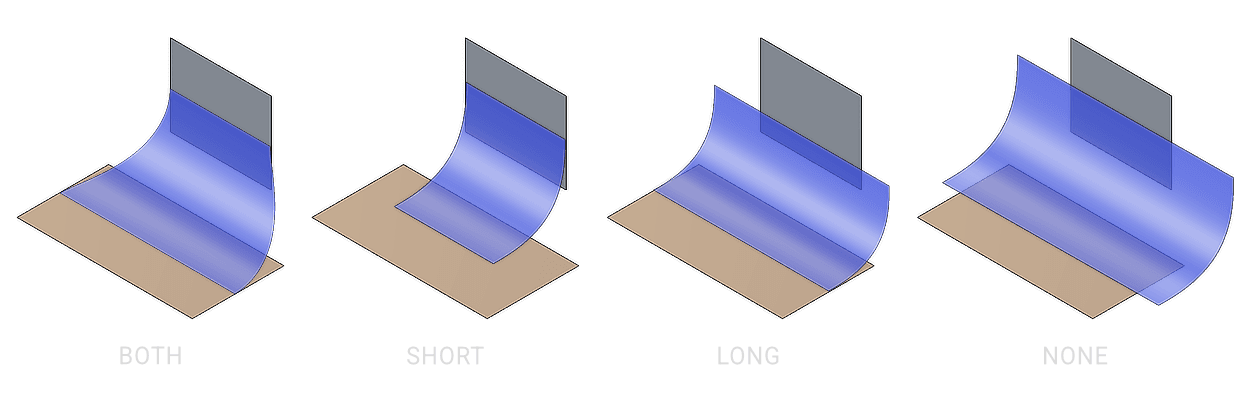
- Trim walls: When enabled, trim the surfaces behaind the bridge.
- Both: Trim both sides of the bridge surface.
- Short: Trim the shorter side of the surface.
- Long: Trim the longer side of the bridge surface.
- None: Do not trim the bridge surface.
-
Keyboard Shortcuts
- A Add left-right wall pair: Adds an additional blend based on the current wall selections.
-
Command Dialog
- Confirm with OK in the Command Dialog or right-click.
Bridging Intersecting Surfaces
- Use Bridge Surface command in the Command Palette.
- Select the first surface and the second surface.
- Set the options in the Command Dialog.
- Sense:
- Sense 1/Sense 2: Reverse the direction of the bridge surface.
- Other options are the same as above.
- Sense:
- Confirm with OK in the Command Dialog or right-click.