Export Hidden Line
The Export Hidden Line command is similar to traditional CAD export tools where you can produce technical drawings and drafts. It offers options to export object views, include occluded lines, control line appearance, and apply color to objects. The command renders a 3D object and converts it into SVG format. While functionally similar to Export SVG, that command exports only 2D sketches from the Plasticity document, and only when those sketches are relatively flat along an axis.
You can capture specific views for export or use grid views as 2D templates. Note that generating an SVG from a complex model is computationally intensive and may take some time.
If the Plasticity document is untitled, a pop-up window will prompt you to choose a save location. If the file has already been named and saved, running Export Hidden Line from the Command Palette will save the SVG directly to that same directory.
Basic Usage
- Open the Command Palette, search for Export Hidden Line, and execute the command.
- Adjust the options inside the command dialogue:
-
Command Dialog
- Standard Views: Orients the camera to an isometric projection angle before export. Each option exposes a different combination of camera views.
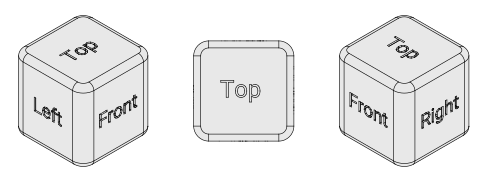
- Top Left: Isometric view from the upper left, showing the top, left, and front view of the object.
- Top: Overhead orthographic view, showing only the top view of the object.
- Top Right: Isometric view from the upper right, showing the top, right, and front view of the object.
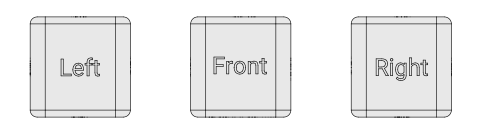
- Left: Direct orthographic view, showing only the left view of the object.
- Front: Direct orthographic view, showing only the front view of the object.
- Right: Direct orthographic view, showing only the right view of the object.
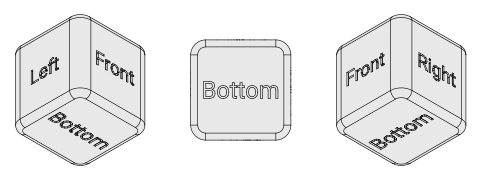
- Bottom Left: Isometric view from the lower left, showing the bottom, left, and front view of the object.
- Bottom: Underneath orthographic view, showing only the bottom view of the objecte.
- Bottom Right: Isometric view from the lower-right, showing the bottom, right, and front view of the object.
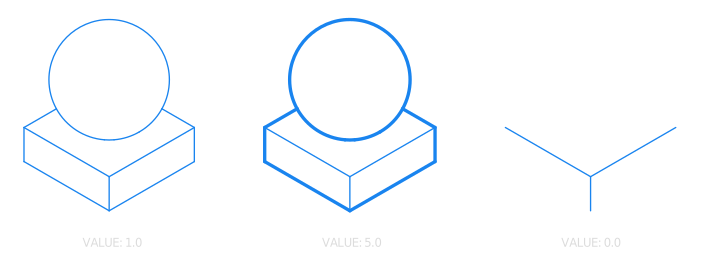
- Style: Controls the appearance and thickness of exported lines. Each line type can be shown or hidden by setting its thickness between
0.00and10.00.- Visible Stroke: Captures hard edges where surfaces meet or change direction, such as concave or convex transitions that are directly visible to the camera.
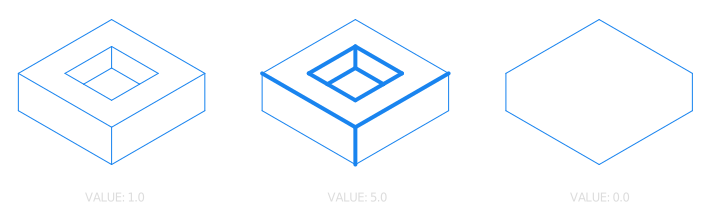
- Silhouette: Traces the contour of an object as seen from the camera angle, including the edges of overlapping objects. May not produce a clean outline in all cases.
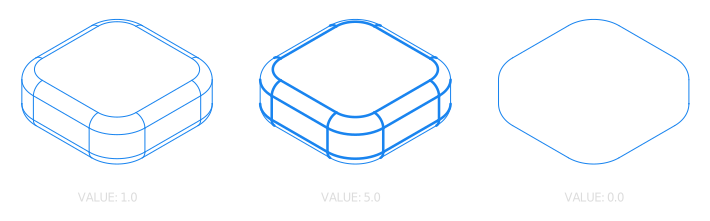
- Smooth: Reveals subtle surface edges that arise from smooth, continuous curvature, such as the seam where two tangent surfaces blend. Derived from the object's construction geometry. This also accounts for surface imprint lines.
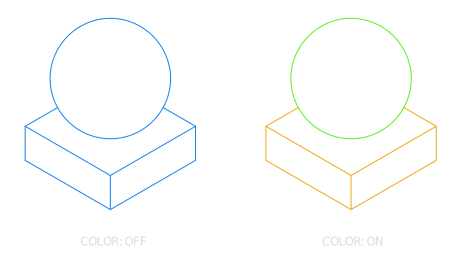
- Use Colors: When an object has a material assigned, it replaces the default black SVG line color with the material's color.
- Visible Stroke: Captures hard edges where surfaces meet or change direction, such as concave or convex transitions that are directly visible to the camera.
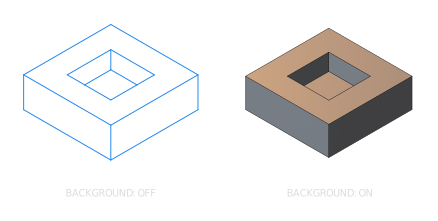
- Shaded Background: Toggles the shaded appearance on the object.
- Pixel Scale: Controls the resolution of the shaded appearance.
- Pixel Scale: Controls the resolution of the shaded appearance.
- Hidden Lines: Toggles the visibility and appearance of occluded edges hidden behind visible surfaces.
- Stroke Width: Sets the stroke width of each dash along hidden edges. This does not affect hidden smooth surface edges sp use the Smooth option in the Style section for that.
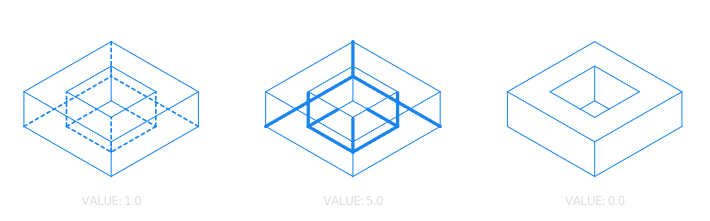
- Dash Length: Sets the length of each dash along hidden edges. At
0.0, lines appear as dots. Increasing the value produces longer dashes.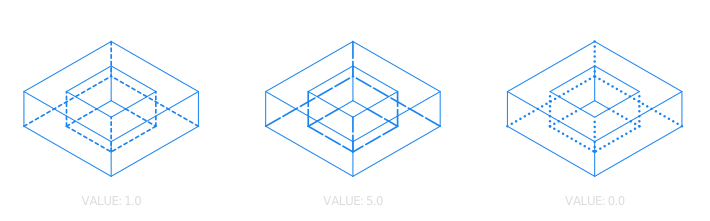
- Dash Gap: Sets the spacing between each dash. At
0.0, hidden lines appear continuous.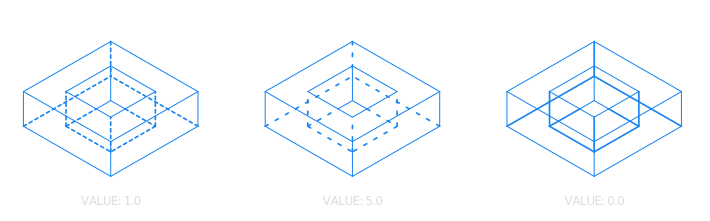
- Stroke Width: Sets the stroke width of each dash along hidden edges. This does not affect hidden smooth surface edges sp use the Smooth option in the Style section for that.
- Planar Hatching: Generates hatching lines across surfaces using a planar projection as the intersection profile.
- Spacing: Controls the spacing between hatching lines. Affects all surfaces and can be combined with other hatching methods.
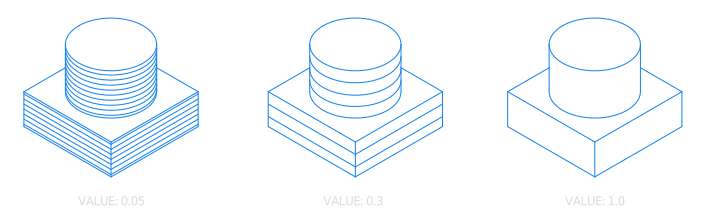
- Axis XYZ: Rotates the hatching pattern along the X, Y, and Z axes of the hatching plane.
- Spacing: Controls the spacing between hatching lines. Affects all surfaces and can be combined with other hatching methods.
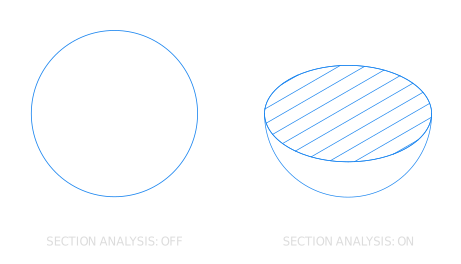
- Section Hatching: Generates hatching lines only on surfaces cut by the Section Analysis command.
- Spacing: Controls the distance between hatching lines. Applies only to section planes and can be combined with other hatching methods.
- Axis XYZ: Rotates the hatching pattern along the X, Y, and Z axes of the section plane.
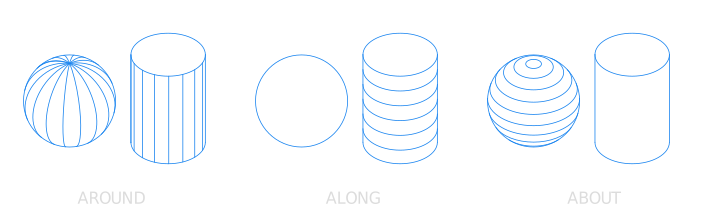
- Radial Hatching: Automatically applies hatching to spherical and cylindrical geometries in the scene. Can be combined with other hatching methods.
- Around: Controls the density of lines that run vertically from pole to pole around the geometry.
- Along: Controls the density of lines that run horizontally across the geometry, parallel to the equator.
- About: Controls the density of lines that wrap concentrically around the pole, radiating outward from the top of the geometry.
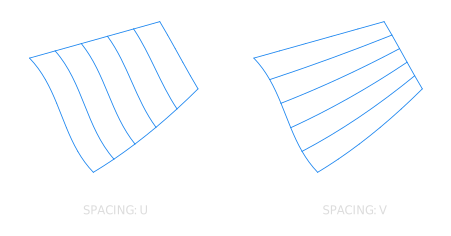
- Parametric Hatching: Applies hatching that follows the isoparameter (UV) structure of a surface. On surfaces with a well-defined CV construction, the hatching will follow the natural isoparam directions. Primarily useful for spline surfaces, but can be applied to any surface.
- U Spacing: Controls the density of hatching lines along the U isoparameter direction.
- V Spacing: Controls the density of hatching lines along the V isoparameter direction.
- Tolerance:
- Curve Chord Tolerance:
- Curve Chord Angle:
- Standard Views: Orients the camera to an isometric projection angle before export. Each option exposes a different combination of camera views.
-
Keyboard Shortcuts
- S Capture Screen: Captures the current view from the viewport and updates the preview window. Works in perspective, orthographic, and isometric views.
-
Command Dialog
- If the Plasticity document hasn't been saved or named, a pop-up window will appear asking where to save your SVG file. Select where you want to save it and confirm.
- The SVG file has been exported.