How to use
Setup
Before you start, install the Blender Bridge add-on and enable the server in Plasticity. See the setup instructions if you haven't done this yet.
Basic usage
The bridge transfers objects from Plasticity to Blender on demand. Click Refresh in the Plasticity sidebar panel inside Blender, and your current Plasticity scene flows across.
-
In Plasticity - open or create the document you want to work with.
-
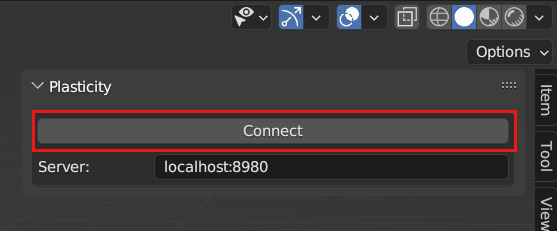
In Blender - open the Plasticity sidebar panel in the 3D Viewport and click Connect. Once connected, additional options appear in the panel.
-
In Blender - click Refresh to pull objects from Plasticity into the Blender scene.
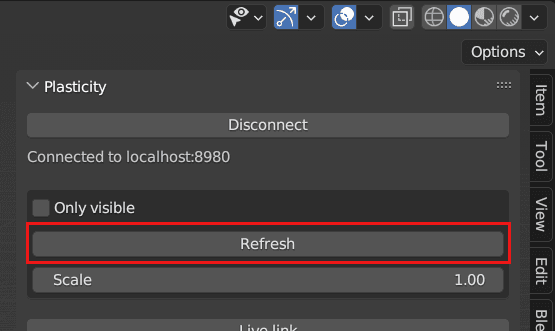
All Solids and Sheets in Plasticity arrive as Meshes in Blender. A few panel options affect what gets transferred:
- Only Visible - when off (the default), hidden Plasticity objects come across as hidden Blender objects. When on, hidden objects are skipped entirely.
- Scale - multiplies the size of the imported geometry. Useful when your Plasticity document was modelled at a different unit scale than your Blender scene.
-
Edit in Plasticity, refresh in Blender. Whenever you change geometry upstream, click Refresh again to update Blender. Materials, modifiers, transforms, and selection state survive the refresh - see Workflow Helpers for what carries across.
Live Link
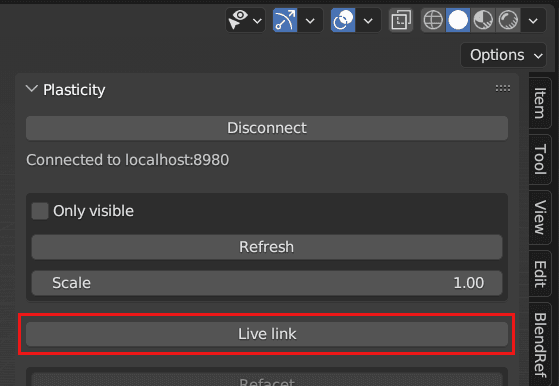
Live Link removes the manual refresh step. With it enabled, every change in Plasticity streams to Blender automatically as you work.
-
In Plasticity - open the document you want to stream.
-
In Blender - click Live Link in the Plasticity sidebar panel.
-
Edit in Plasticity. Move a control vertex, fillet an edge, change a parameter - Blender updates within a second or two, with your scene's actual camera, lights, and materials reacting in real time.
Live Link is the fastest way to see your model in context as you work. Toggle it off when you want to pause the stream.
Refacet Mesh
Refacet retopologizes the imported mesh, regenerating its triangulation from the underlying NURBS surface. Use it to switch between a low-poly preview while blocking out and a denser mesh for render, without changing anything in Plasticity.
-
Select the transferred objects in Blender.
-
Click Refacet in the Plasticity sidebar panel.
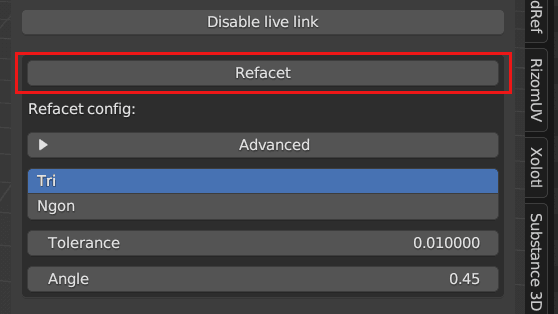
Refacet automatically marks sharps on the new edges, so smooth shading is preserved out of the box.
Basic settings
- Tri / Ngon - the type of polygons to generate. Tri produces triangles only; Ngon allows five-or-more-sided polygons where it makes sense.
- Tolerance - the maximum allowed deviation between the original NURBS surface and the new mesh. Lower values track the surface more closely at the cost of higher polygon count.
- Angle - the maximum angle between adjacent faces. Lower values produce smoother curvature at the cost of more polygons.
Advanced settings
Click Advanced in the panel to reveal finer controls:
- Min Width - the minimum face width in the output mesh. Smaller values allow finer detail.
- Max Width - the maximum face width. Smaller values force denser tessellation.
- Edge Chord Tolerance - how closely the new edges follow the original NURBS edges.
- Edge Angle Tolerance - the angular tolerance applied along edges.
- Face Plane Tolerance - how closely flat regions match the original NURBS faces.
- Face Angle Tolerance - the angular tolerance applied across face surfaces.
Selection utilities
The Plasticity sidebar exposes five Blender commands for working with imported geometry. Each one uses the original Plasticity face and edge IDs preserved during import.
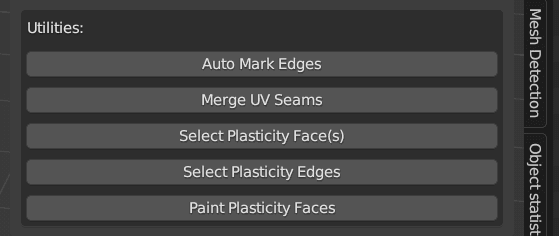
- Auto Mark Edges - Mark edges as sharp or seams based on the selected faces, depending on the last operation panel.
- Merge UV Seams - Merge UV seams based on the selected faces.
- Select Plasticity Face(s) - Expand the selection of the faces based on the Faces from Plasticity.
- Select Plasticity Edges - After selecting faces, execute the command to select edges based on the Edges from Plasticity.
- Paint Plasticity Faces - Paint random vertex colors based on the Faces from Plasticity.
Working with PolySplines
PolySplines flow in the opposite direction: model a form in Blender with subdivision surfaces, send it back to Plasticity, and it becomes G2-continuous editable NURBS automatically. A Studio license is required - see the PolySplines documentation for details on the conversion itself.
Basic workflow
-
In Plasticity - start from an empty scene. Anything already in the document will be pushed to Blender during the connection step and pulled back through PolySplines, which you probably don't want.
-
In Blender:
-
Click Connect in the Plasticity sidebar panel.
-
Enable Only Visible to avoid transferring anything from Plasticity into Blender.
-
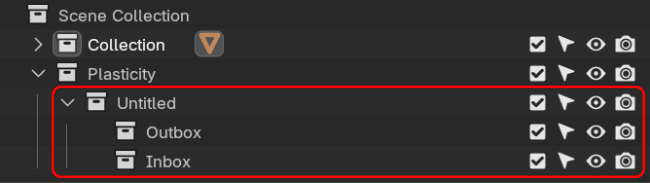
Click Refresh to set up the outliner with the PolySplines groups.
-
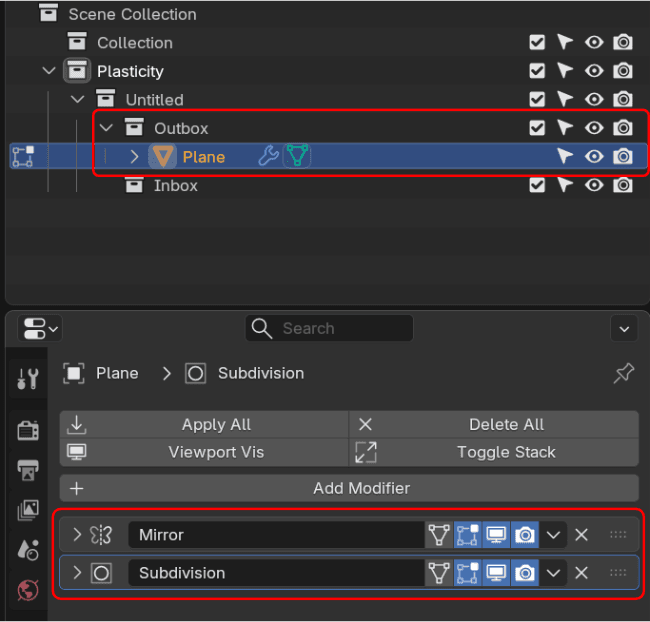
Place your Blender object inside the Outbox group and add a Subdivision Surface modifier with at least level 1.
Any other geometry modifying modifiers should sit after the Subdivision modifier in the stack - all modifiers are applied automatically when the object transfers to Plasticity.
-
Click Refresh to send the object back to Plasticity.
-
-
In Plasticity - the converted PolySpline surface appears in the viewport:
- Scale, position, and rotation come across automatically.
- All Blender modifiers are baked in during the transfer.
- The result is editable as a NURBS surface, ready for filleting, booleans, and the rest of the Plasticity toolset.
Mirror Modifier: The source object must touch the mirror plane for the mirror to produce a valid result. Floating geometry next to the plane will fail.