Grid and Units
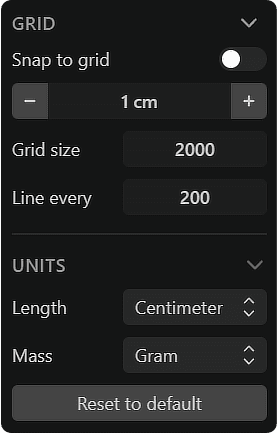
Grid
Snap to grid: You can use grid snapping to snap your cursor to the grid while drawing or moving objects. To specify the grid size, change the value under Snap to grid.
-
- The grid appears on the active construction plane. Set the grid unit in the Units section of the Length window, and the grid size in the Grid size field of the Grid section.
-
- Grid snapping can also be toggled via the Command Palette: Grid: toggle grid snapping, Grid: decrease grid size, Grid: increase grid size.
-
- To temporarily disable grid snapping, hold Ctrl while dragging.
-
- To customize the grid color, go to Preferences.
Grid size: Specifies the overall size of the grid.
Line every: Specifies the spacing interval for the thick lines in the grid.
-
- Units are displayed while drawing curves, and you can press Tab to enter precise measurements.
Units
Length: Specifies the units (Millimeter, Centimeter, Meter, Inch, Foot) for the viewport.
Mass: Specifies a unit (Gram, Kilogram, Ounce, or Pound) to calculate the object's mass. The result appears in the Selection Menu in bottom right.