Release date: April 16, 2026
Plasticity 2026.1 Release Notes
Plasticity 2026.1 adds new commands including PolySplines, Export Hidden Line, and Slot, along with improvements to existing commands like Extrude, Align, Place, and Mirror. You'll also find a number of interface updates in this release, including Outliner search, Construction Plane 2D Snapping, SpaceMouse refinements, and higher numerical precision across sketching commands.
1. New Commands
PolySplines
- Convert Mesh Objects to NURBS Surfaces
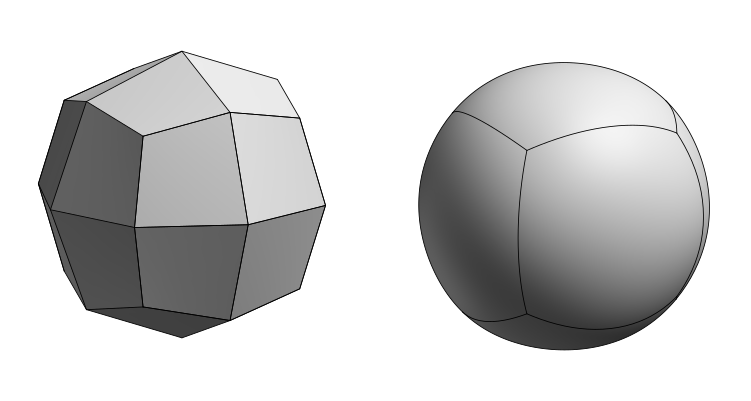
PolySplines is a new third-party command that converts mesh objects (.OBJ, .STL, etc.) into editable NURBS surfaces in Plasticity, generating clean single and multi-span surfaces with G2 continuity. This is a Studio only feature and works well alongside the Blender Bridge addon.
Learn more: PolySplines, Blender Bridge (Working With PolySplines)
Export Hidden Line
- Create Technical SVG Drawings from 3D Objects
Export Hidden Line is a new command that generates technical SVG drawings from your 3D model. It supports hidden edge display, line styling, object shader export, hatching with multiple methods, line coloring, and a grid view template for automatic object positioning.

Slot
- Create a Slot from a Curve
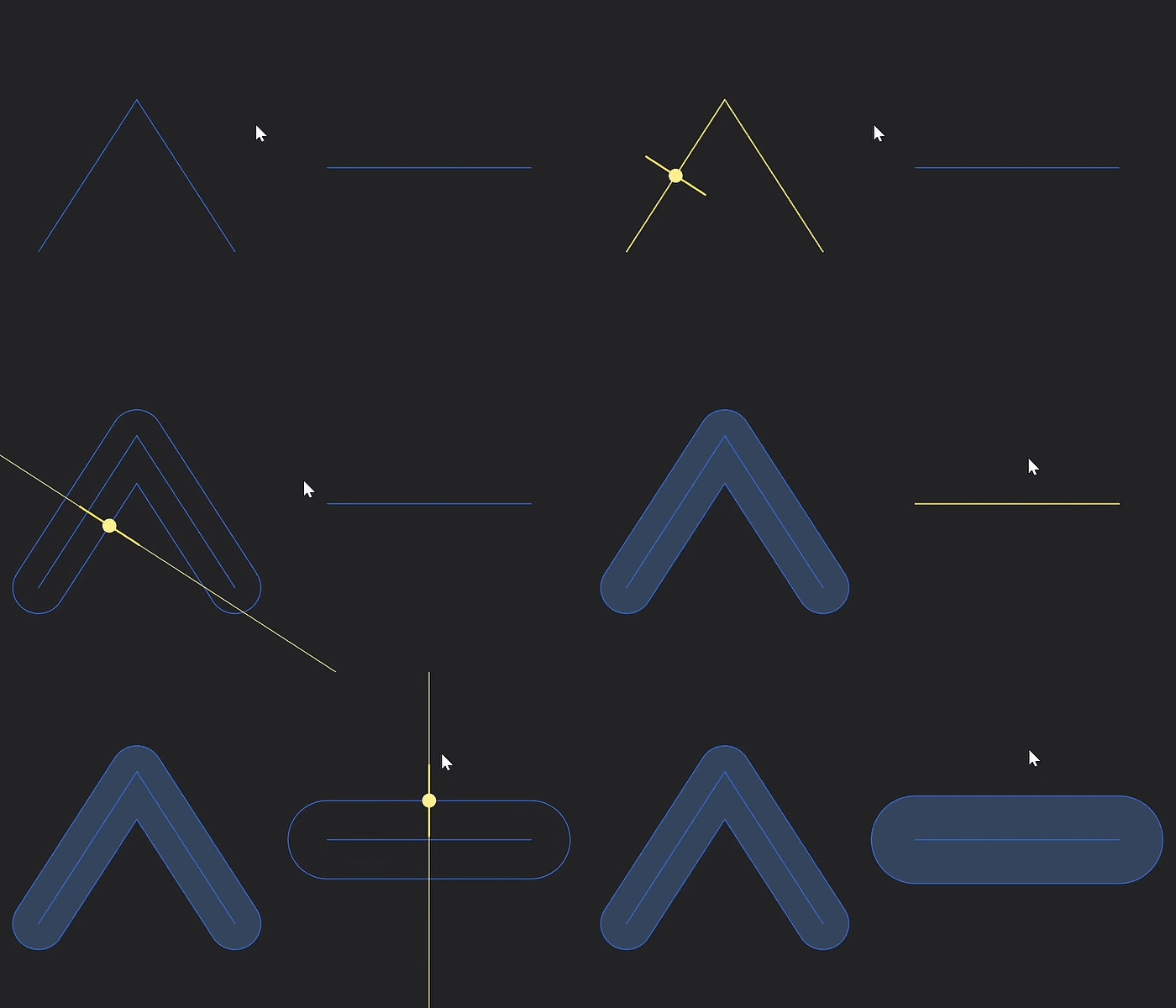
Creates a closed slot shape by offsetting an open curve symmetrically on both sides with capped ends. Useful for mechanical parts such as bolt slots, ventilation cutouts, and similar profiles.
2. Modeling Enhancements
Gizmo Distance Input
- Unified Gizmo Controls
Commands that share the Gizmo can now use Tab to enter a precise distance value. This allows for faster, more consistent input when adjusting transformations. The following commands support this behavior:
| Command | Description |
|---|---|
| Move | Specify XYZ Gizmo distance value |
| Rotate | Specify XYZ Gizmo distance value |
| Scale | Specify XYZ Gizmo distance value |
| Push Face | Specify distance value via Gizmo |
| Extrude | Specify distance value via Gizmo |
| Thicken | Specify distance value via Gizmo |
Numerical Precision
- Higher Precision
Commands that use the input function (=) now copy up to 8 decimal places with Ctrl + C (e.g.,30.345copies as30.34587689).
| Category | Commands |
|---|---|
| Curves | Line, Spline Curve, Control Point Curve |
| Circles | Center Circle, Two Point Circle, Three Point Circle, Tangent Circle, Ellipse |
| Arcs | Center Point Arc, Three Point Arc, Tangent Arc |
| Rectangles | Corner Rectangle, Center Rectangle, Three Point Rectangle |
| 3D Primitives | Sphere, Corner Box, Center Box, Three Point Box, Cylinder, Dimension |
Export OBJ Command
- Scale and Up Axis Controls
The OBJ exporter now includes a Scale field and Up Axis toggle. Scale applies a multiplier to all exported coordinates, allowing correct unit conversion for the target application. Up Axis sets the orientation of the exported geometry to match the conventions of the receiving software.

Scale and Up Axis Reference
| Software | Default Unit | If working in cm | If working in mm | Up Axis |
|---|---|---|---|---|
| Blender | Meter | 0.01 | 0.001 | Z up |
| Unreal Engine | Centimeter | 1.0 | 0.1 | Z up |
| Maya | Centimeter | 1.0 | 0.1 | Y up |
| Unity | Meter | 0.01 | 0.001 | Y up |
| 3ds Max | Inch | 0.3937 | 0.03937 | Z up |
| Cinema 4D | Centimeter | 1.0 | 0.1 | Y up |
Export STL Command
- Overriding Length Unit
Exporting to STL now allows you to override the length unit used during export.

The available units are:
| Available Unit | Example Conversion |
|---|---|
| Millimeter | 1 mm = 0.1 cm = 0.001 m = 0.03937 in = 0.003281 ft |
| Centimeter | 1 cm = 10 mm = 0.01 m = 0.3937 in = 0.03281 ft |
| Meter | 1 m = 1000 mm = 100 cm = 39.37 in = 3.28084 ft |
| Inch | 1 in = 25.4 mm = 2.54 cm = 0.0254 m = 0.08333 ft |
| Foot | 1 ft = 304.8 mm = 30.48 cm = 0.3048 m = 12 in |
3. General Improvements
Preference Menu
- Preference Menu - The menu can now be dragged and repositioned within the Plasticity window.
- Rotation Mode - A new Arcball rotation mode is now available, rotating the view freely across all three axes by mapping mouse movement to an imaginary sphere around the scene for full 360 degree rotation in any direction.
- Measurement Color - A new color setting in the Appearance section lets you customize the color of Measurement Lines and Measurement Units displayed in sketching tools.
SpaceMouse
- Behavior - General improvements and tweaks have been made to make SpaceMouse behaviour more consistent with other software. Updating to the latest driver for your device is recommended. Changes include:
- Directions - Up/Down directions are now reversed.
- Speed - Default speed has been recalibrated to better match the expected feel in other applications.
- Lock Horizon - A new option in Preferences > SpaceMouse to toggle roll behaviour.
Keyboard Overlay
- Background Toggle - The shortcut overlay now switches from white to a dark background when used on very light scenes.
Menu Panels
- Expand and Collapse Speed - Expanding and collapsing Menu Panels is now faster.
Assets Panel
- Keybinding Support - The Assets panel now supports navigation using the arrow keys.
Axial Gizmos
- Axis Visibility Update - Axial gizmos now fade out when directly facing the camera.
Save File Window
- Save File - Plasticity now prompts a dialog asking whether you want to save any unsaved changes.
Thumbnail Display
- MacOS File Identification - Thumbnail previews are now supported on macOS.
Window Application Size
- Window Handling - Plasticity now behaves more predictably when resized to small dimensions on Windows.
- Command Dialogs - Command dialogues now include a scroll bar for navigating long lists of options.
4. New Features
Control Point Mode
- Intersection Point Visualization
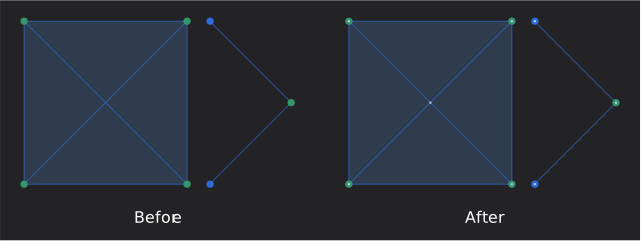
When in Control Point selection mode, a small dot appears anywhere two curves intersect or where vertices are connected. This gives a clear indication that the curves are truly connected.
Outliner
- Search Field
The Outliner now includes a search field, accessible via Ctrl + F or the search icon, making it easier to find specific objects in crowded scenes.
- Active Collection
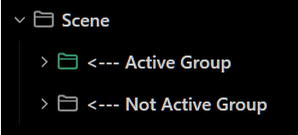
Double clicking a group in the Outliner now sets it as the Active Collection. Any newly modeled, imported, or created objects will automatically be placed into that group. A visual highlight indicates which collection is currently active.

Construction Plane
- 2D Snapping
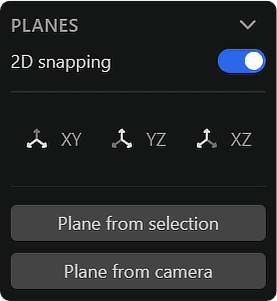
A new 2D Snapping option has been added to the Planes menu. When enabled and an active construction plane is set, all picked points are projected onto that plane. Dragging points moves them along the construction plane rather than in 3D space, and related interactions follow the plane's orientation.
Materials
- Material Preservation
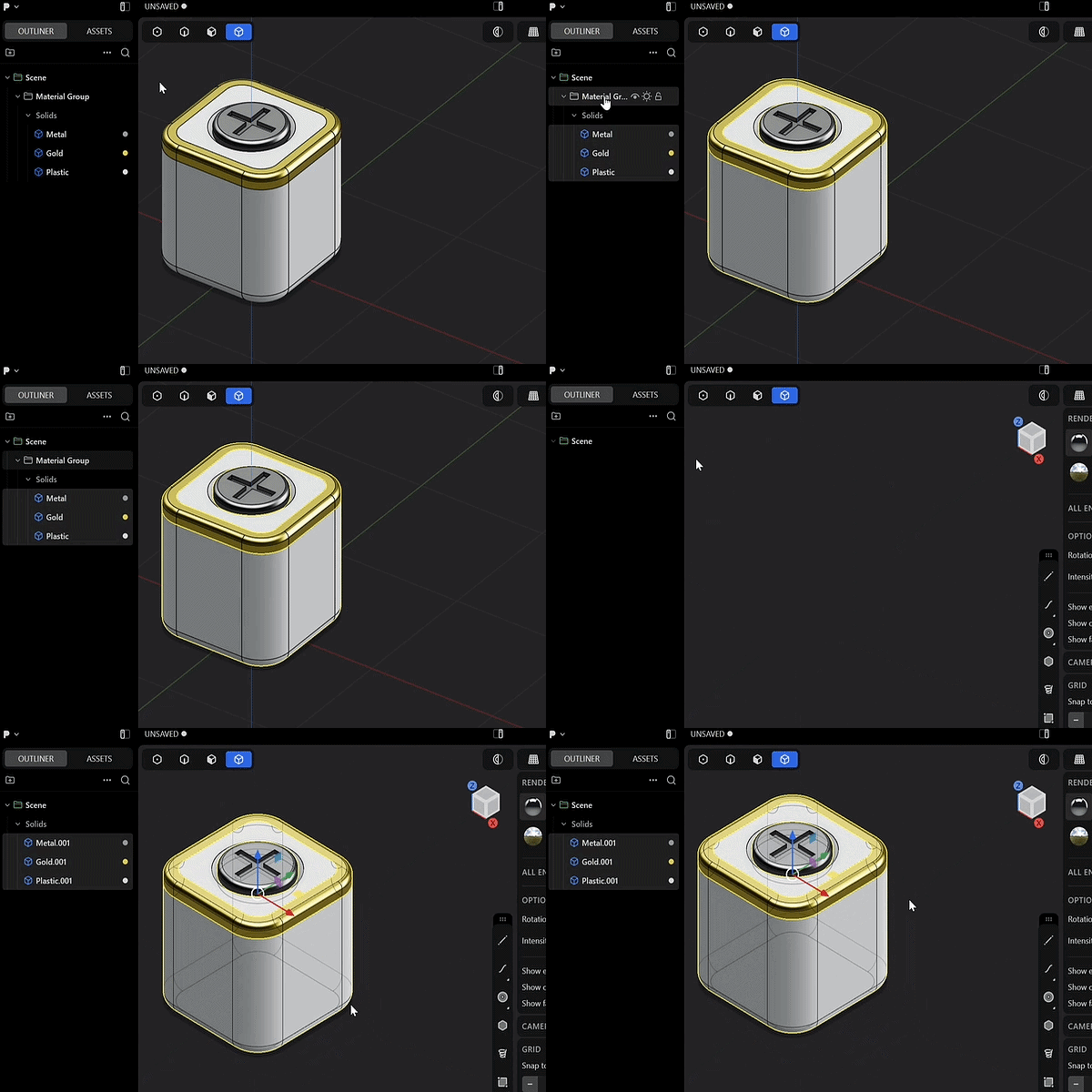
Copying and pasting objects with inherited materials into a newly opened scene window now correctly preserves those materials.
- Density Attribute
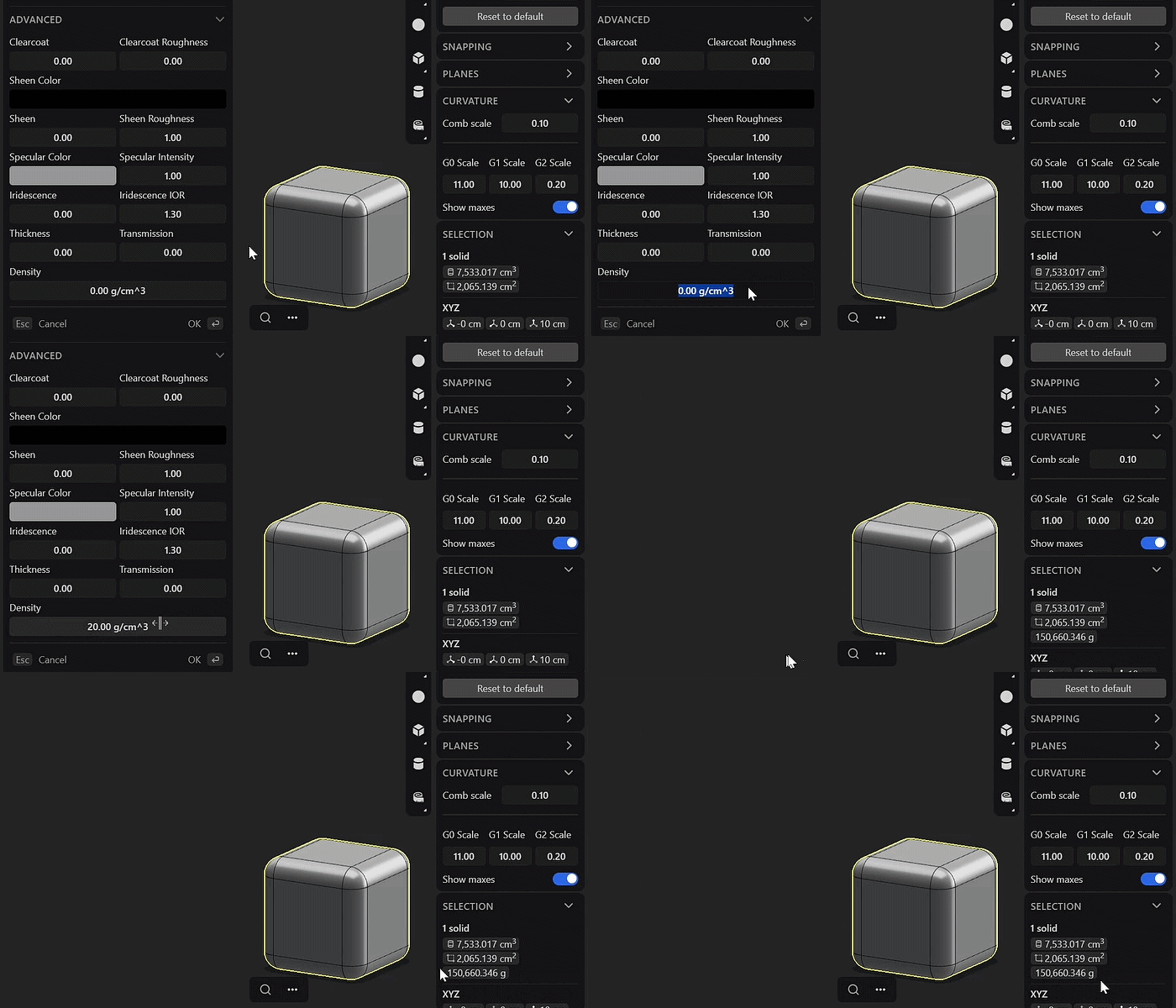
The Material menu now includes a Density field, allowing you to specify a material's density. Units can be adjusted in the Units section, and final mass calculations are displayed in the Selection menu.
5. Improved Commands
Align Command
- Align Curves
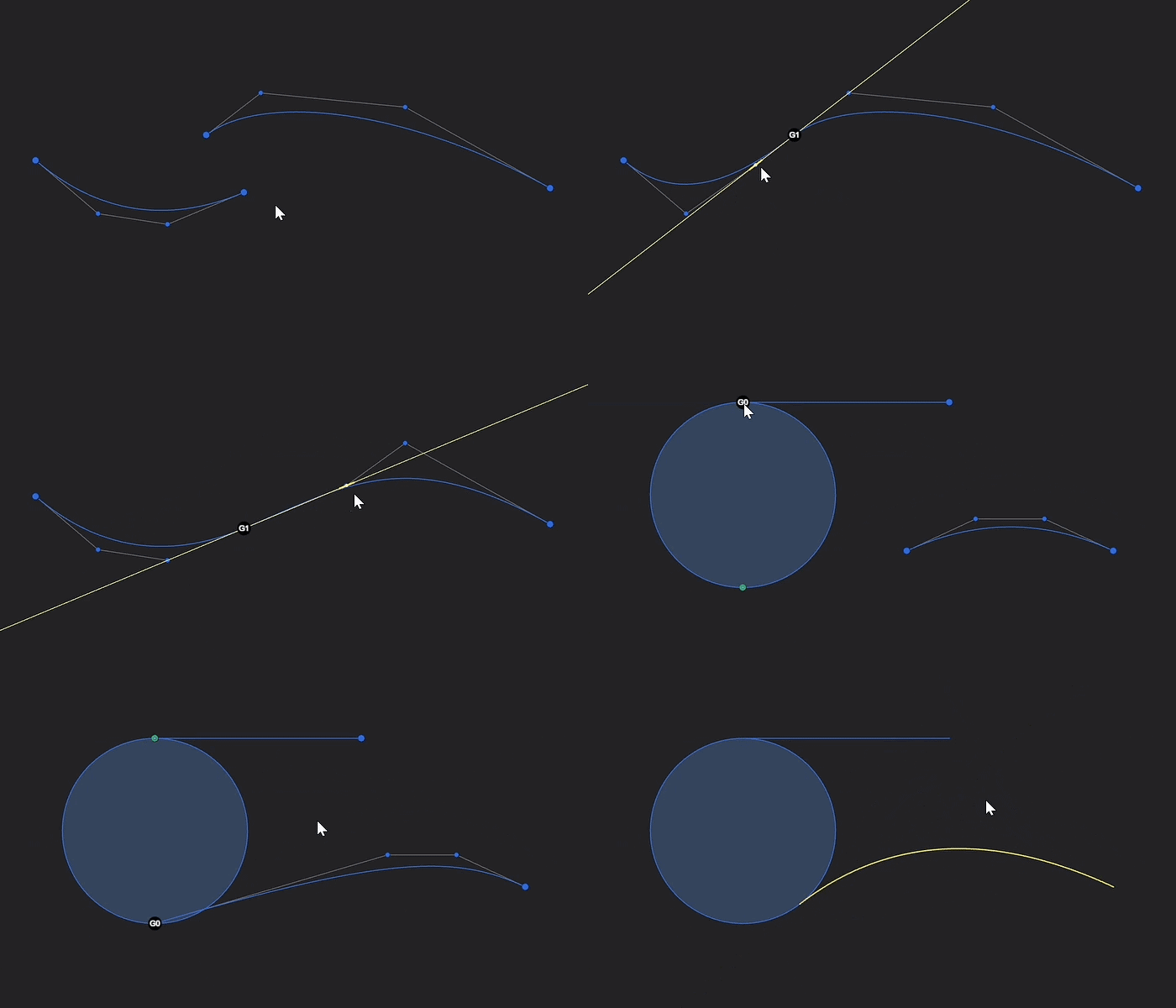
The Align command now supports aligning two curves to G0, G1, G2, and G3 continuity. It supports Vertex to Vertex and Curve to Curve alignment, including polylines and geometric shapes such as circles and polygons. A new selection order algorithm has also been added, making it easier to handle cases where a vertex is shared or overlapped by two curves.
Place Command
-
Expanded Object Support
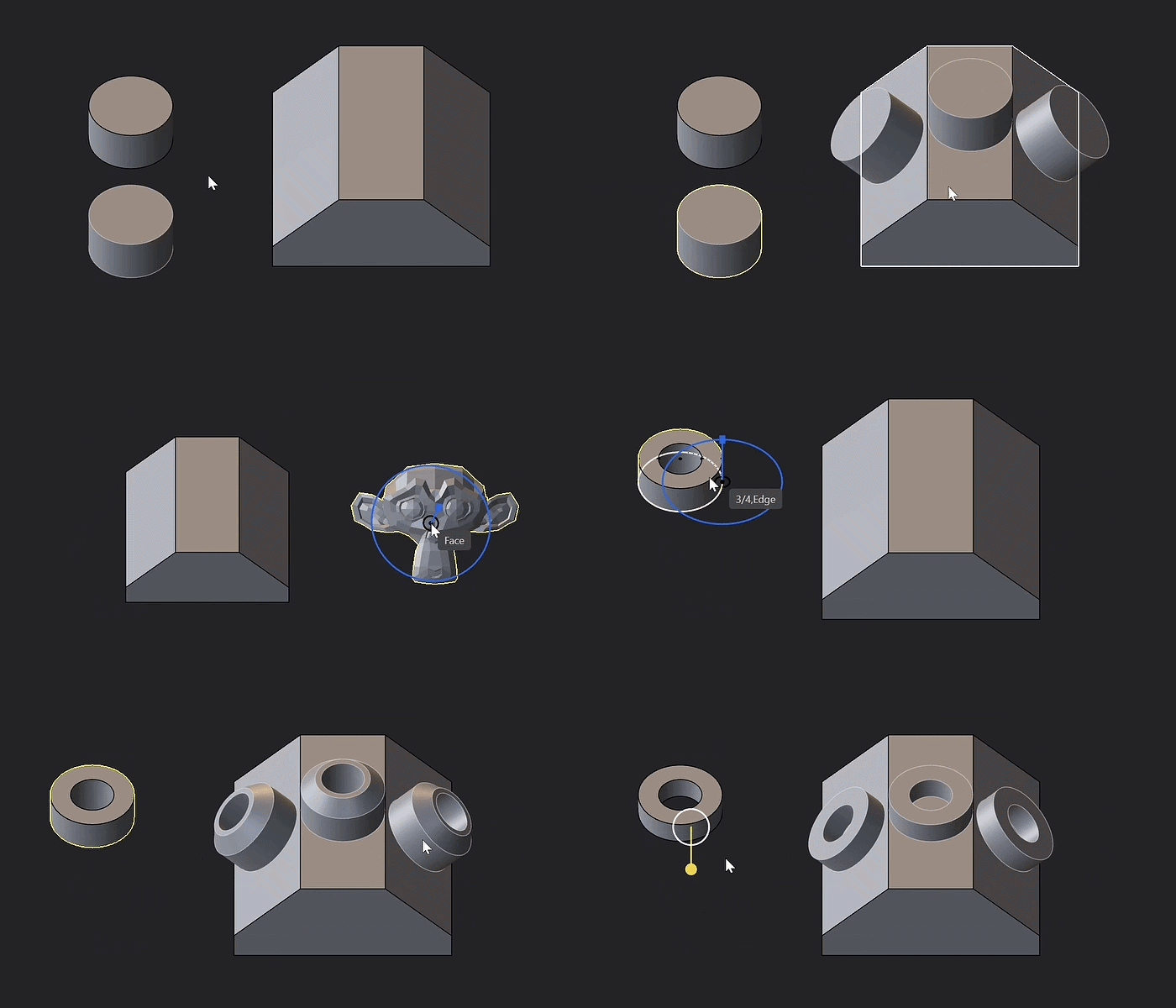
The Place command now supports placing both Mesh and Instance objects, giving you more control when working with these object types. When placing an instance, only Face and Edge snap points are supported. For Mesh objects, Vertex and Face snap points are supported. -
Create Instances
The command now supports creating instances directly when placing objects.
Mirror Command
- Create Instances
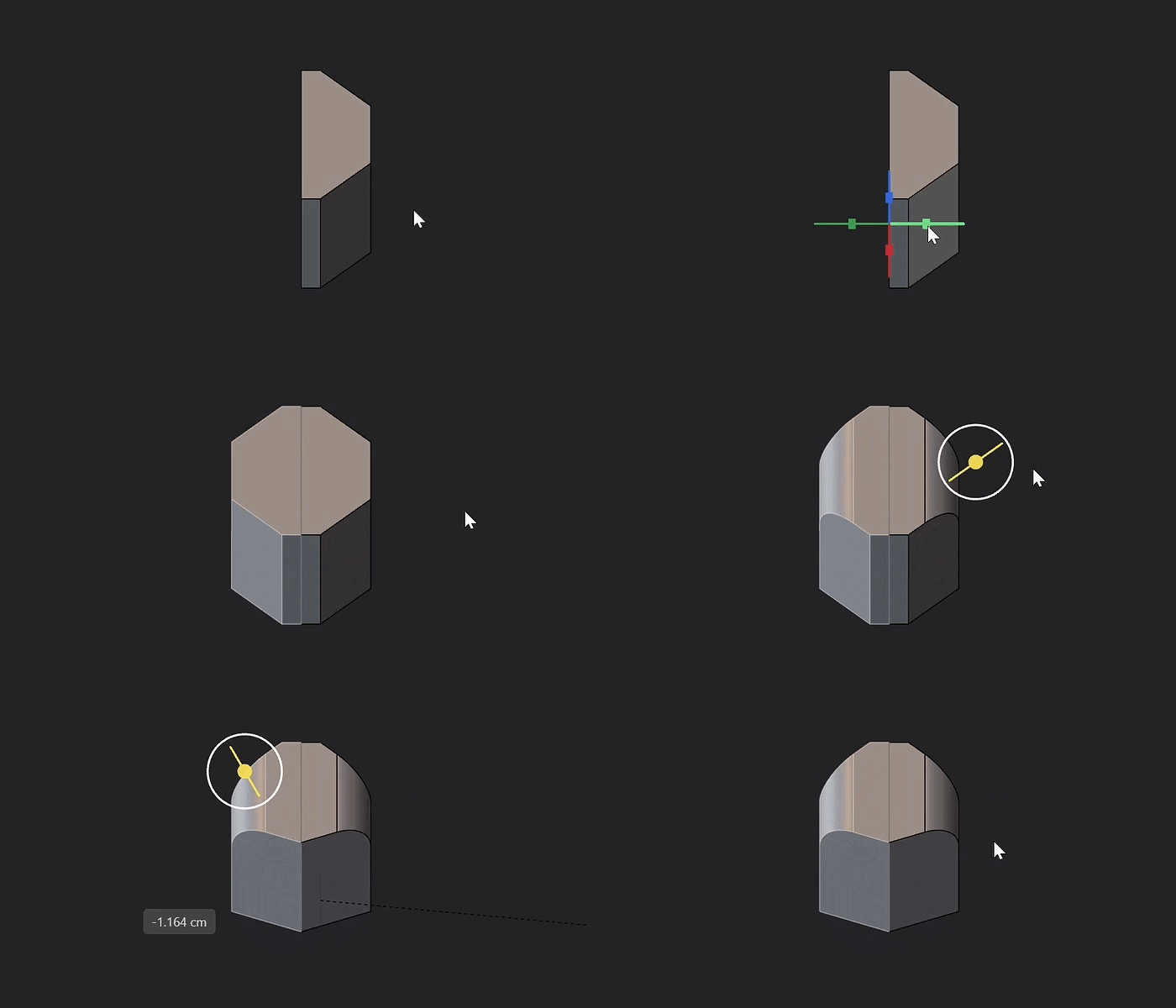
The Mirror command can now create instances when the Make instances option is enabled, and it can be invoked with I.
Extrude Command
-
Edge Extrusion
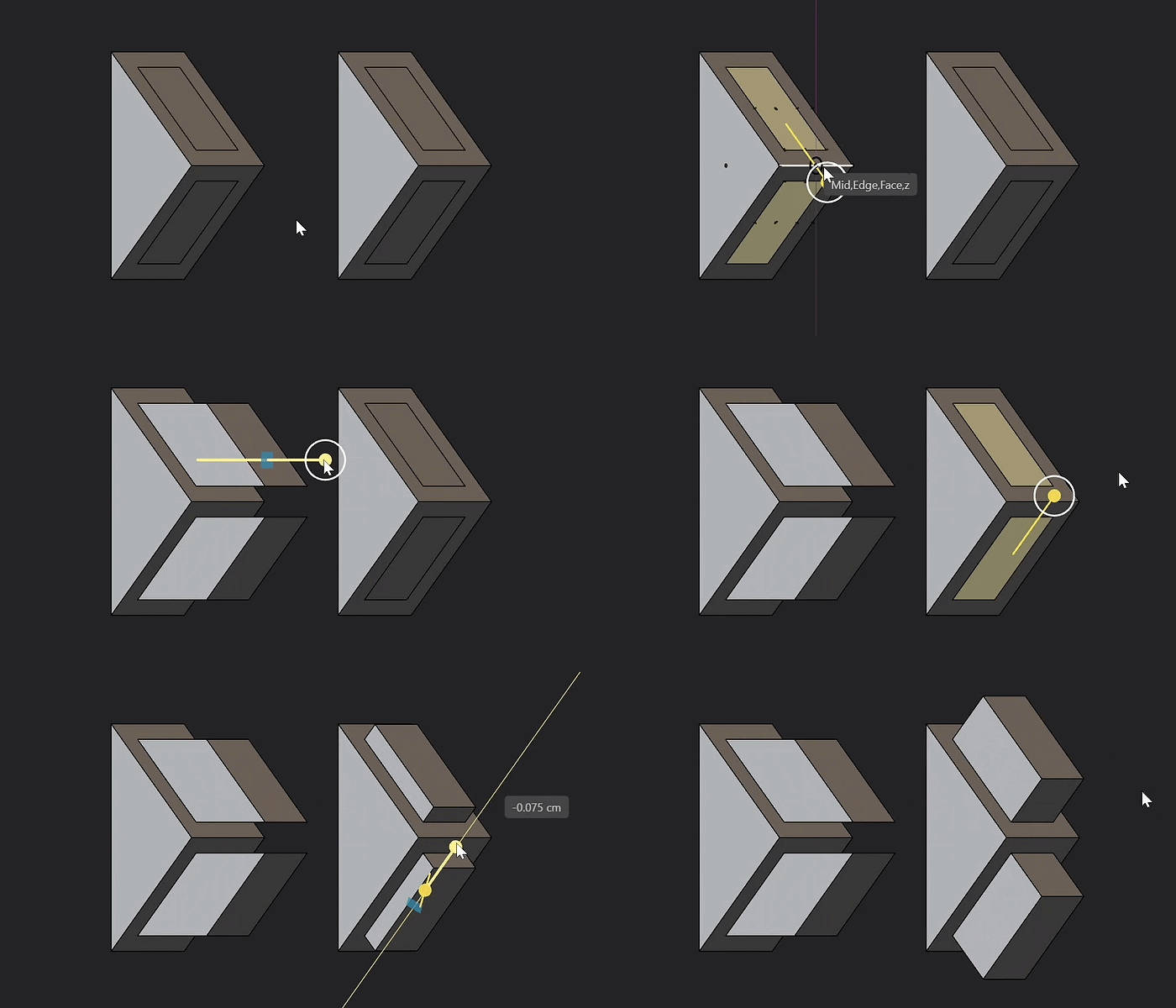
The Extrude command now allows you to extrude surface edges directly. -
Toggle Individual or Direction Mode
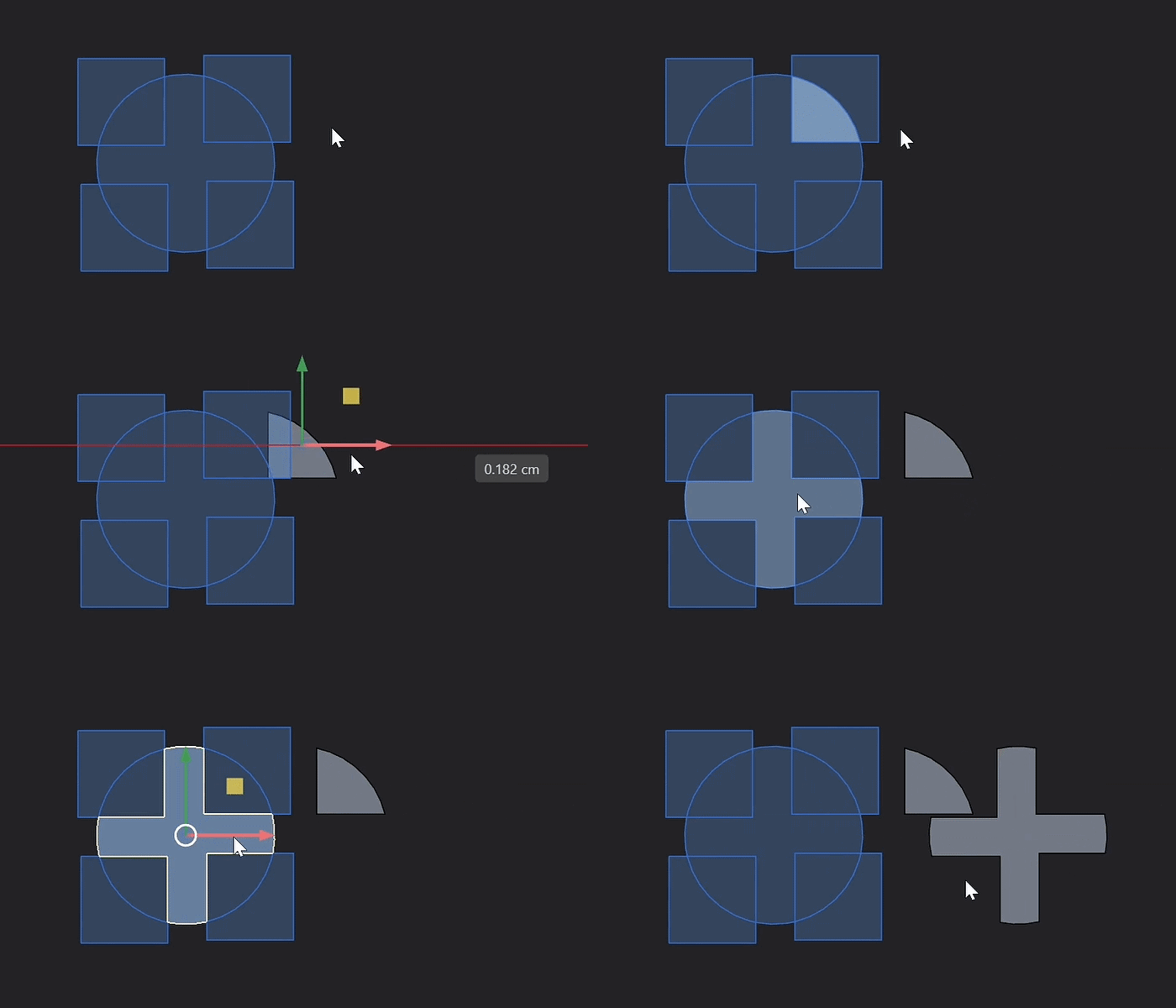
The Extrude command now includes a new mode toggle. Individual mode extrudes each surface along its own normal direction, while Direction mode extrudes all selected surfaces along a single unified direction.
Patch Command
- Region Patching
The Patch command now accepts Regions as valid input, which was previously unsupported.
Tangent Circle Command
- Inline Radius Input
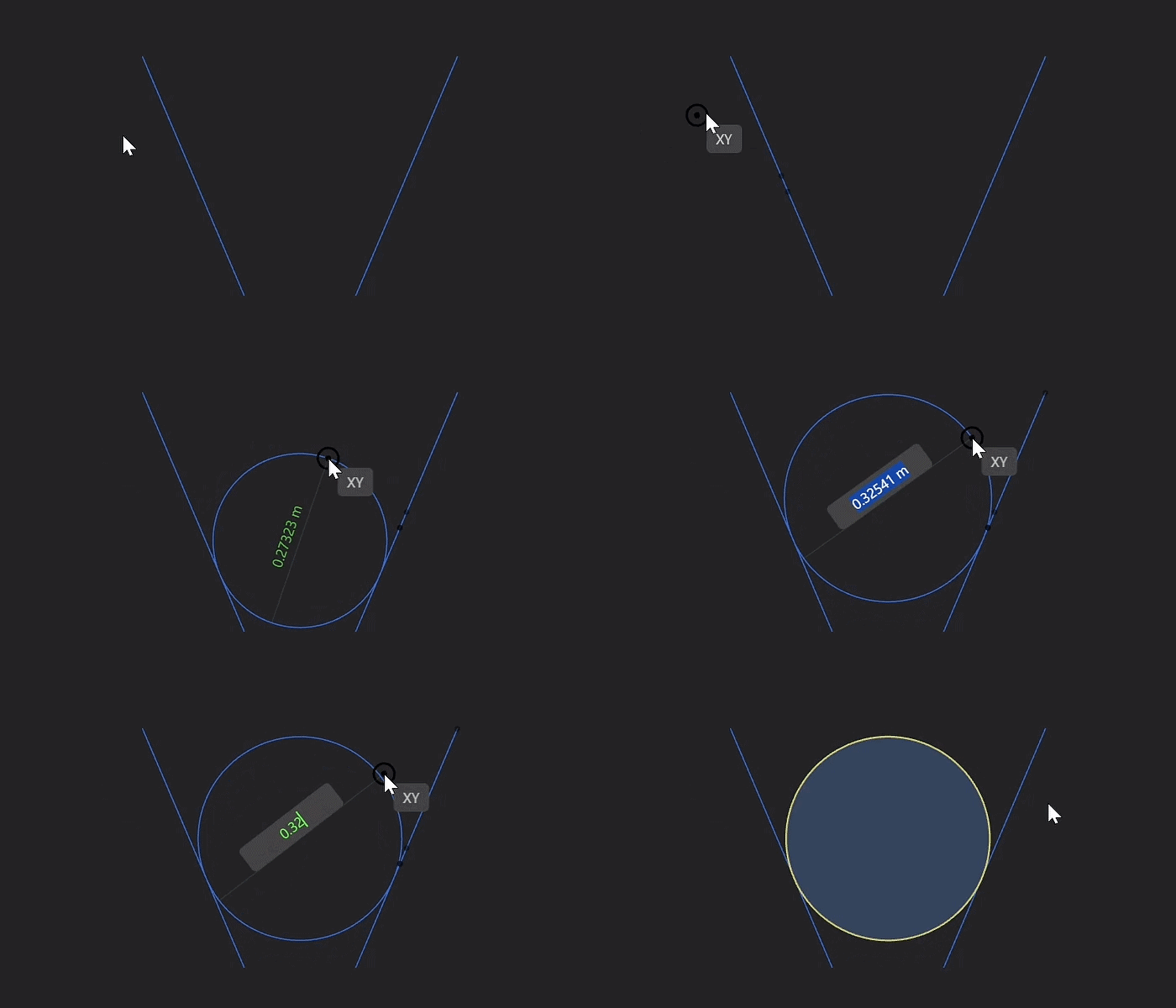
The Tangent Circle now displays an inline radius input, making it easy to see and round the radius value during creation. Previously, this was hidden, making it difficult to enter a precise value within the allowed range.
Curve Array Command
- New Alignment
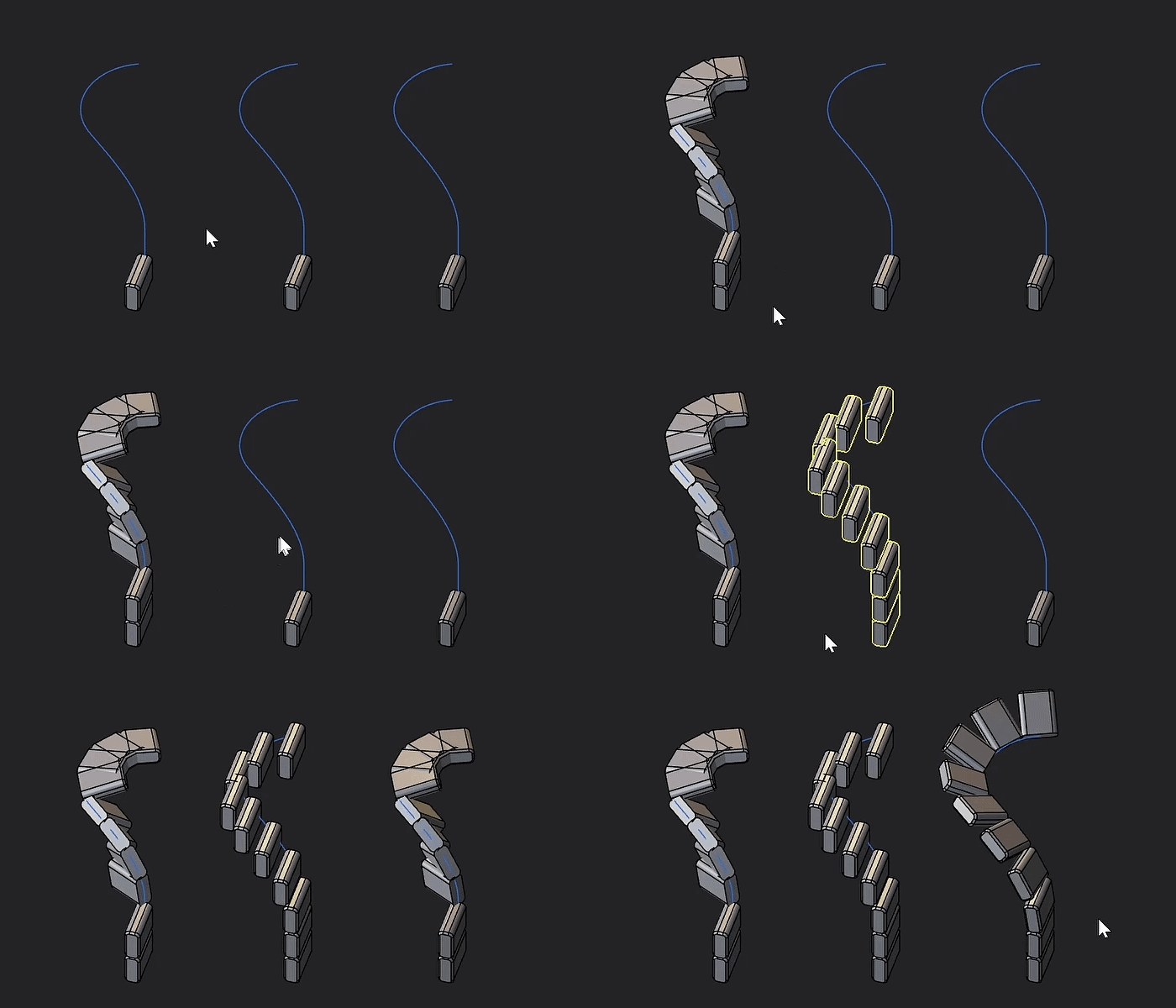
The Curve Array command now includes a new alignment mode called Transport. Unlike Normal or Parallel, which rely on local normal calculations, Transport uses a stable frame that smoothly follows the curve. This prevents twisting or flipping and keeps objects correctly oriented even along complex, organic paths.
Rotate / Move / Scale Command
- XYZ Color Chips
The dialog includes color chips that correspond to the XYZ coordinate system making it easier to understand which axis each option affects.

- Transform Instances Inversely
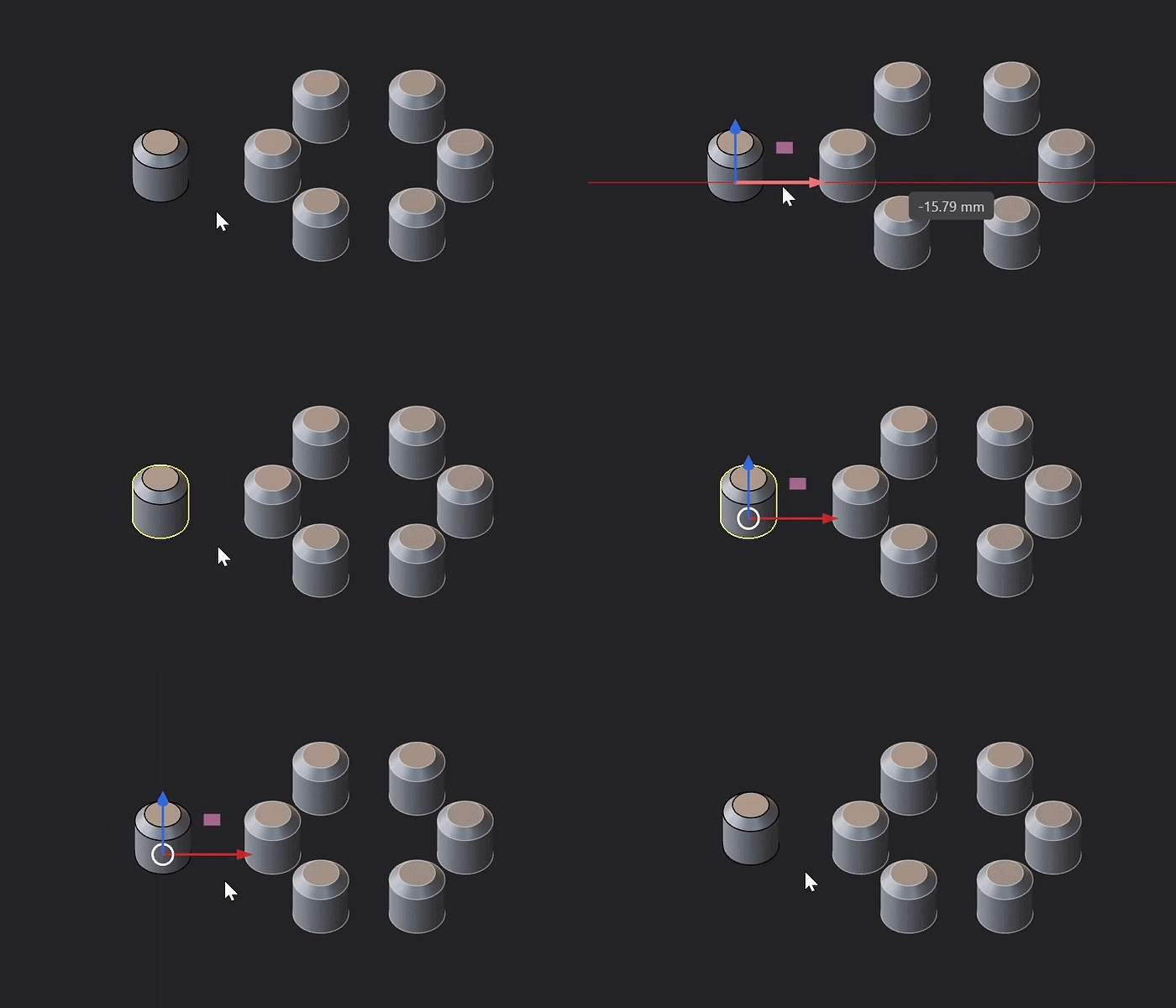
Transformation commands now include an Advanced section with a Transform Instances Inversely option. When enabled, transformations apply only to the parent object while its instances remain in place.
- Freestyle Sub-Option
It's now possible to Freestyle Rotate and Scale faces on solid and sheet objects.
Learn More: Rotate, Scale, Move
Pipe Command
- Label Clarification
The term Section Size has been renamed to Diameter to better reflect its purpose and avoid ambiguity.
Sweep Command
-
From Radians to Degrees
The Sweep command now uses degrees to define the twist angle. Holding Ctrl snaps the value in 5 degree increments for easier precise adjustments. -
Boolean Operations
The command now includes Boolean operation support. When actively sweeping an object you can perform boolean operations.
Revolve Command
- Boolean Operations
The command now supports boolean operations while actively revolving an object.
Hollow Command
- Hollow Multiple Bodies
The Hollow command can now hollow multiple bodies at once.
Bridge Command
- Remember Settings
The Bridge command now remembers continuity settings (G0, G1, G2, G3) between uses.
Past Update Information
- December 15, 2025 Version 2025.3