Offset Planar Curve
CommandOffset Curve
ShortcutO
Button In Suggested Commands Menu
In Suggested Commands MenuAvailable in
IndieStudio
Description
Offset a planar Curve by specifying the distance to create new Curves. The option for symmetrical offsetting on both sides is available.
Basic Usage
- Select the Curves you want to offset.
- Press O.
- Move the yellow arrow to specify the distance.
- Set the options in the Command Dialog and Keyboard Shortcuts.
- Command Dialog
- Distance: Specify the Distance.
- Gap fill: Specify how the empty space is filled.
- Round: Rounds convex corners.
- Linear: Connects convex corners with straight lines, adding extra vertices.
- Natural: Preserves the original shape without adding extra vertices.
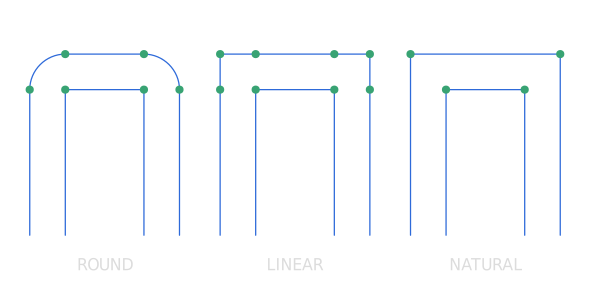
-
Keyboard Shortcuts
- S Lock distances: Offset with equal distance on both sides.
- F Freestyle: It functions similarly to the Freestyle Offset Planar Curve described below.
- O Slot: Invoke the Slot command.
- V Gap fill: Cycle through the gap fill options.
- D Distance: Specify the distance with mouse movement.
- Confirm with OK in the Command Dialog or right-click.
Freestyle Offset Planar Curve
Offset a planar Curve by specifying the distance using cursor movement to create new Curves. The option for symmetrical offsetting on both sides is available.
Note: This command can be executed not only through the Freestyle option in the Offset Curve command but also by using the Freestyle Offset Planar Curve in the Command Palette.
Basic Usage
- Select the Curves you want to offset.
- Press O.
- Press F to enter Freestyle mode.
- Move the cursor to the offset point and click.
- If Grid Snaps are enabled, the offset point snaps to the grid.
- If Object Snaps are enabled, the offset point snaps to the object.
-
Command Dialog
- Distance: Specify the Distance.
- Gap fill: Specify how the empty space is filled.
- Round: Rounds convex corners.
- Linear: Connects convex corners with straight lines, adding extra vertices.
- Natural: Preserves the original shape without adding extra vertices.
-
Keyboard Shortcuts
- S Lock distances: Offset with equal distance on both sides.
- V Gap fill: Cycle through the gap fill options.
- Confirm with OK in the Command Dialog or right-click.