Rotate
CommandRotate
ShortcutR
Button In Command Bar
In Command BarAvailable in
IndieStudio
Description
Rotate objects using Rotate Gizmo. Options for single-axis constraints or freestyle rotation are available. The pivot point is also adjustable. When you insert a new primitive or sketch object at its initial insertion point, the Rotate Gizmo and pivot automatically re-orient to align with the object's surface normal.
Basic Usage
- Select the objects you want to rotate.
- Press R.
- Use the displayed Rotation Gizmo to rotate.
- Set the options in the Command Dialog and Keyboard Shortcuts.
-
Command Dialog
-
Angle: Specify the last specified angle using the rotation Gizmo as a numerical value
-
Axis: Specify the rotation axis using the X, Y, or Z vector.
-
Orientation: Set the orientation of the rotate gizmo.
 Normal: Sets the orientation to align with the object's surface normal.
 Pivot: Sets the orientation to match the previously defined pivot orientation.
 Construction Plane: Sets the orientation to align with the active construction plane.
 World: Sets the orientation to align with the global (world) axis.
-
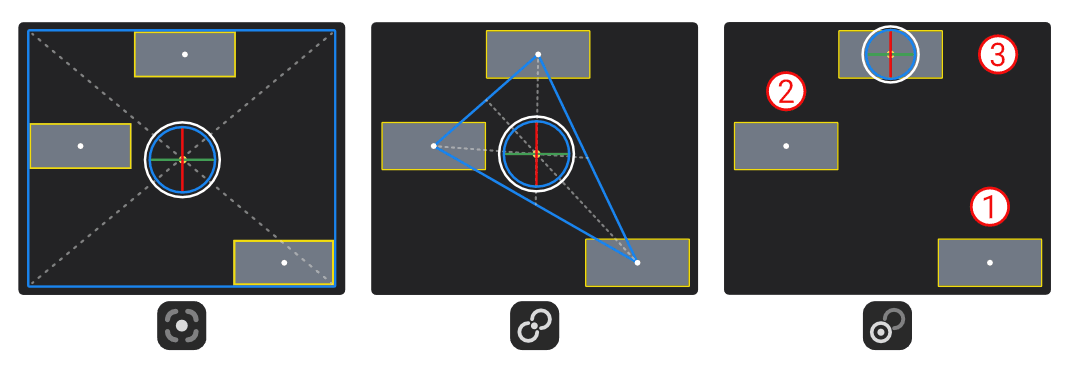
Pivot: Set the position of the pivot point.
 Bbox: Positions the pivot at the center of the bounding box enclosing the selected objects.
 Median: Positions the pivot at the average location of the pivots of the selected objects.
 Active: Positions the pivot at the last selected (active) object's pivot.
-
Advanced:
- Transform instances inversely: Rotates only the parent object while keeping any attached instances in place, by automatically applying the inverse transformation to each instance.
-
- Keyboard Shortcuts
- X/ Y/Z X/Y/Z-axis: Constrain to the X, Y, or Z-axis.
- G Screen space: Limit to the visible plane.
- F Freestyle: Click the starting point and endpoint of the rotation axis, and then click the reference point. Move the cursor to rotate the object, and then click to set the desired angle.
- V Pivot: Click to specify the position of the Gizmo.
- W Worldspace: Change the Gizmo's coordinate axis to world coordinates.
-
Command Dialog
- Confirm with OK in the Command Dialog or right-click.
Freestyle Rotate
This command is equivalent to the F option of the Rotate command.
- Select the objects you want to rotate.
- Use the Freestyle Rotate command in the Command Palette.
- Click the starting point and endpoint of the rotation axis, and then click the reference point.
- Move the cursor to rotate the object, and then click to set the desired angle.
- Set the options in the Command Dialog and Keyboard Shortcuts.
- Confirm with OK in the Command Dialog or right-click.