Release date: December 15, 2025
Plasticity 25.3 Release Notes
Plasticity 25.3 delivers a comprehensive set of updates aimed at streamlining surface modelling, precision editing, and overall workflow efficiency. The update adds live instance creation and realization, radial measurement and ellipse tools, automatic pivot adjustments, and real time curvature and continuity feedback, while also refining array, mirror, and sweep functionalities and workflows.
Users can benefit from the edge manipulation on cylindrical and conical surfaces, drag and drop material handling, faster navigation, new OBJ export options for topology control and expanded language support. Below is a detailed overview of the updates:
1. New Commands
Create Instance Command
- Instance Workflow
The Create Instance command creates live instances of Solids, Sheets, Curves, and Groups referencing the original geometry. This approach avoids duplicating mesh data, keeps models lightweight, and ensures that any modification to the parent object propagates automatically to all its instances.
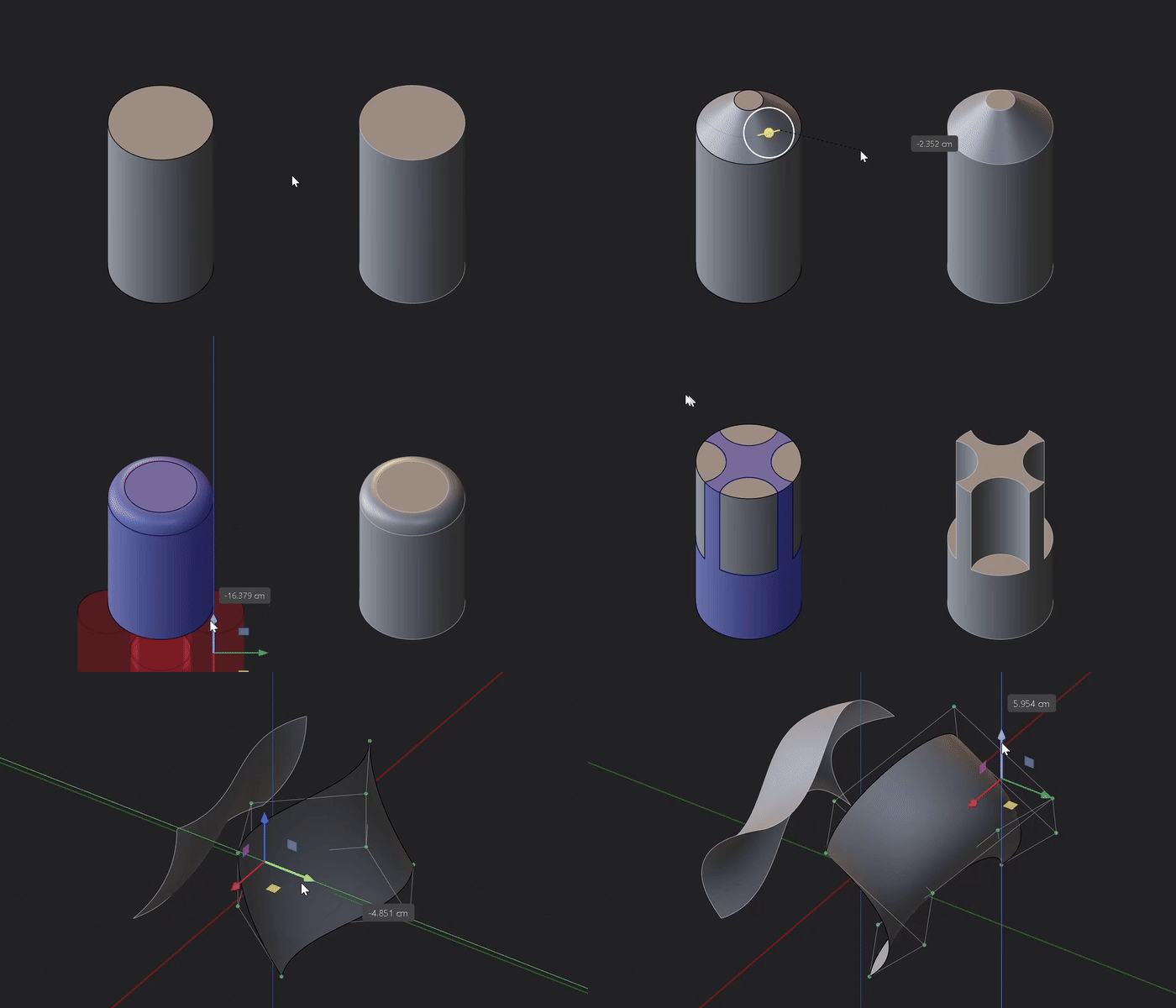
Learn more - Create Solid and Sheet Instance and Create Curve Instance
Realize Instances Command
- From Instance to Real Body
The Realize Instances command converts selected instance objects into editable real bodies, giving you full control over the resulting geometry in Plasticity.
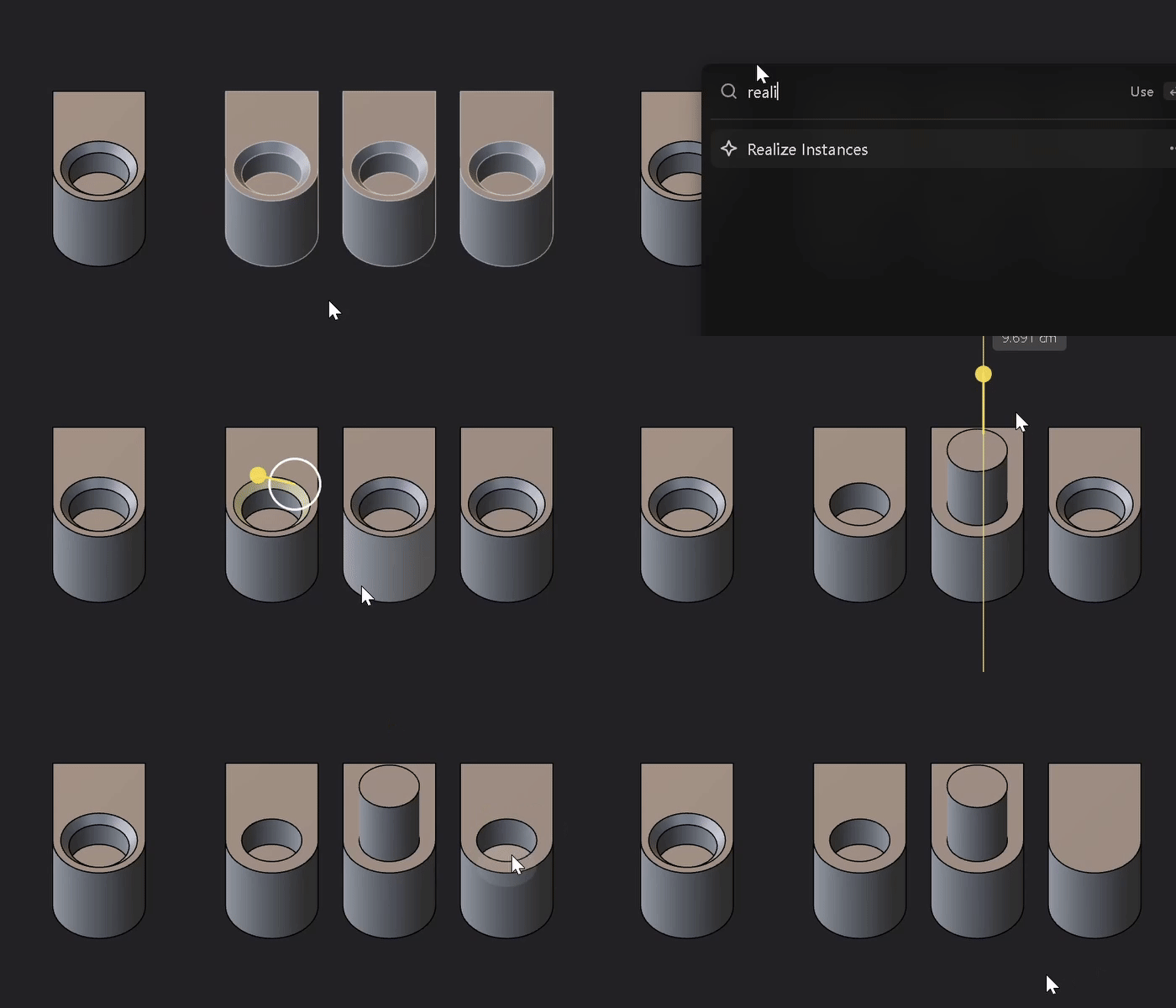
Learn more - Realize Solid and Sheet Instances and Realize Curve Instances
Publish to Plasticity Share Command
- Upload and Share (.plasticity) Documents Online
Publish to Plasticity Share is a new export command that lets you share a web link to your work. It uploads only the mesh data (no CAD geometry or source files), so the shared file can only be previewed and cannot be downloaded, keeping cloud storage usage minimal. This feature is ideal for quickly showing visualizations without exposing the original project files.
Measure Radius Command
- Radial Measurement
A dedicated Measure Radius command for objects with radial geometry, applicable to cylinders, cones, and other similarly shaped elements.
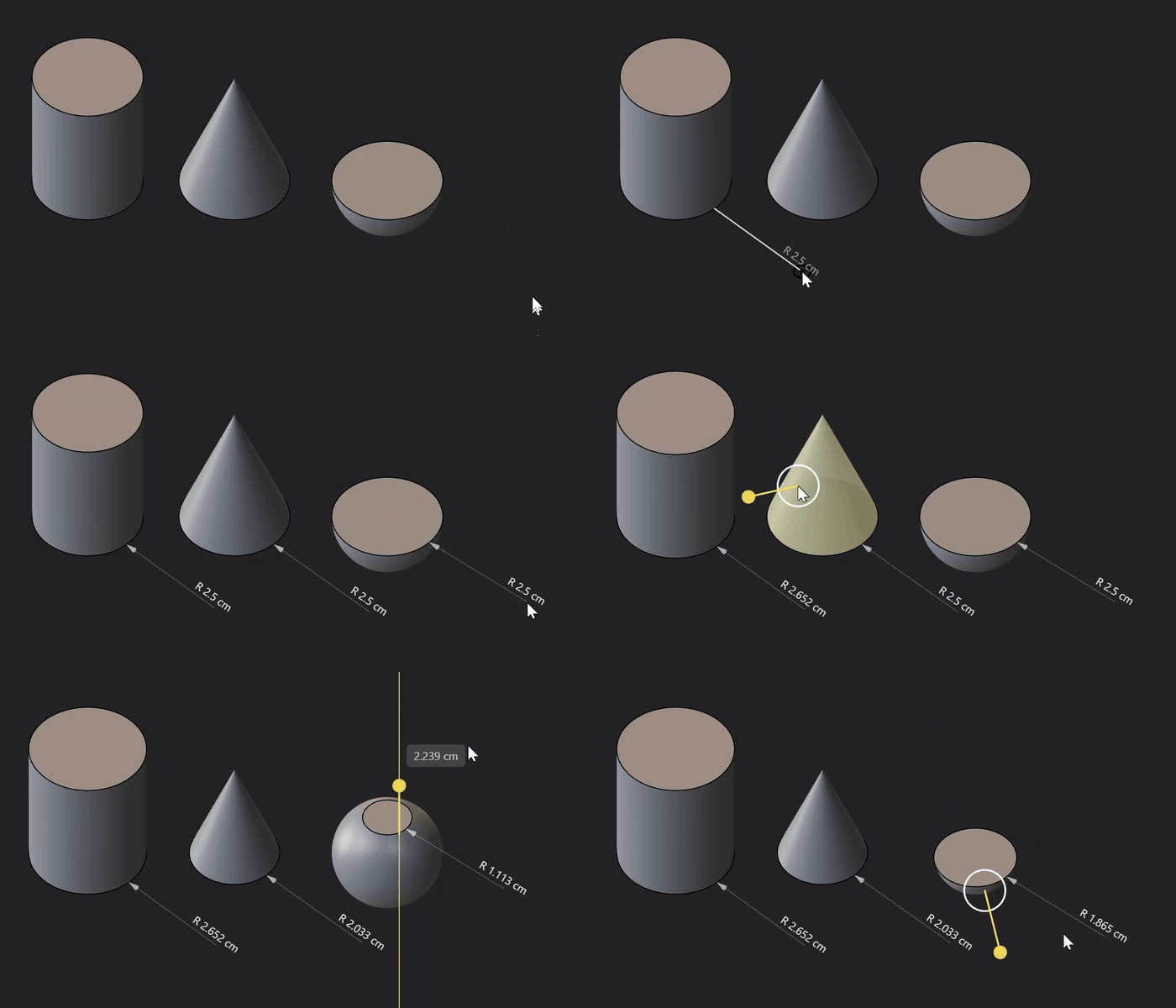
New Ellipse Tool
- Ellipse Tool
The Ellipse tool is now available in Plasticity, providing precise control for creating accurate ellipses.

2. Modeling Enhancements
Measurement and Curve Appearance Update
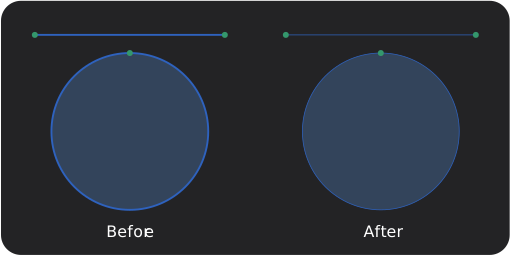
- Measurements - Arrows are now displayed at the ends of dimension lines.
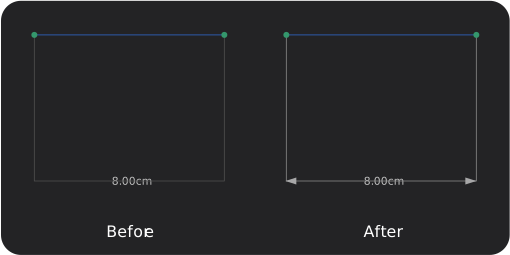
- Curves - Rendered with a thinner stroke, which reduces visual clutter in dense scenes.
Snap to Grid
- Scale Gizmo
Incremental snapping is now respected when Grid Snapping is enabled while using the Scale tool.
Snap Point
- Spherical Faces
Spherical faces now provide a Center snap point, which becomes available when X-ray mode is turned on in View Mode.
Move Tool
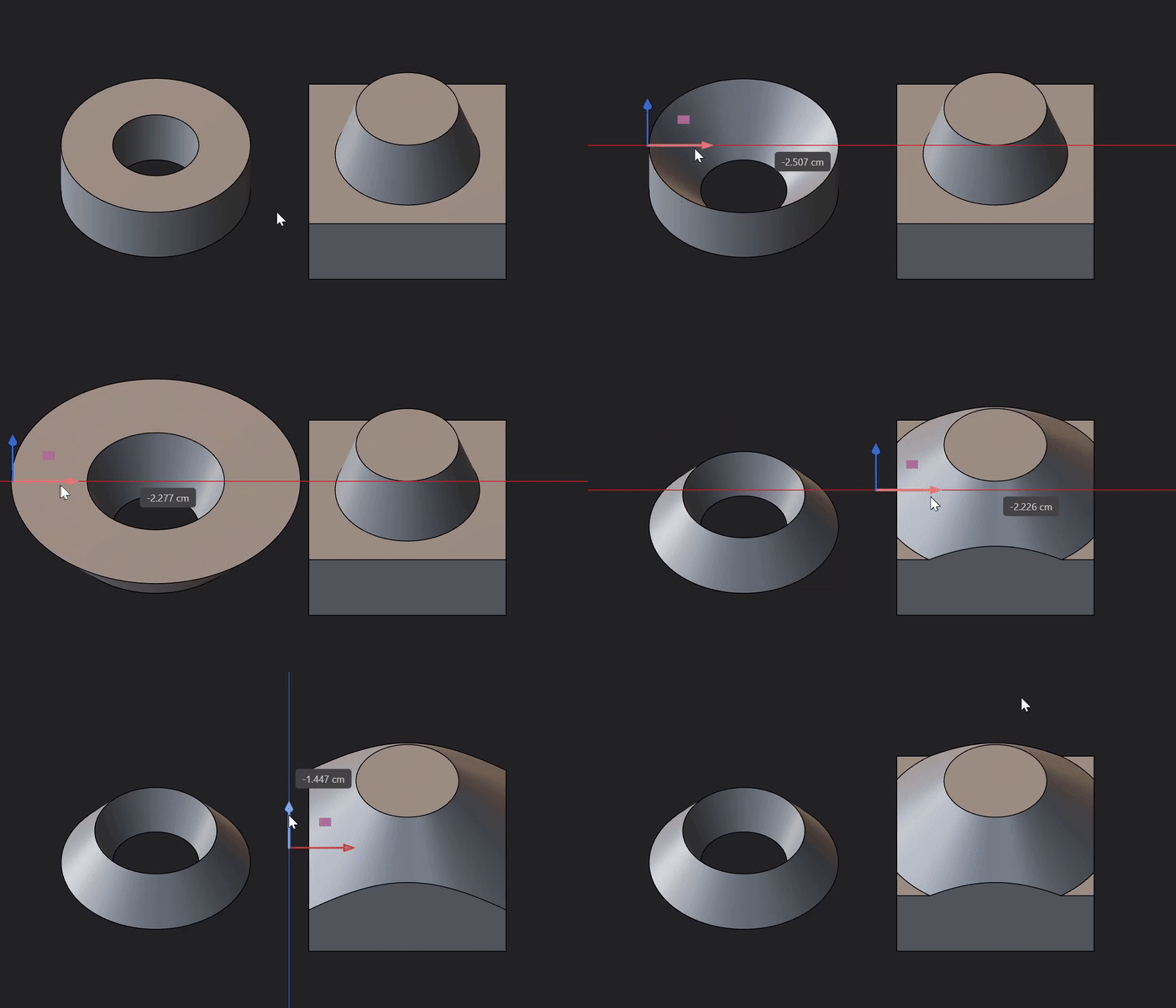
- Solid and Sheet Edge Manipulation
Moving an edge of a solid or sheet body now supports circular edges on cylindrical and conical faces. The operation preserves the analytical geometry of those faces. You can manipulate both interior and exterior surface edges, provided the adjacent faces are planar, cylindrical, or conical and the moving edge is a line or a circle.
Pivot Point
- Automatic Pivot Adjustment
Automatically orients the pivot point along the surface normal at the location where a primitive or sketch object is first placed. The tools affected are listed below.
| Primitive Tools | Sketching Tools |
|---|---|
| Corner Box | Corner Rectangle |
| Center Box | Center Rectangle |
| Cylinder | Three Point Rectangle |
| - | Center Circle |
| - | Two point Circle |
| - | Three Point Circle |
| - | Regular Polygon |
| - | Ellipse |
3. General Improvements
Mouse Navigation
- Navigation
The mousewheel zoom has been tweaked to be faster when navigating through scenes. This adjustment makes it easier to zoom in on details, especially when working with large scenes.
Performance
- Curves - Optimizations have been made for scenes with lots of intersecting curves.
- Snap to OBJ Files - Snapping to OBJ files has been optimized and responsive when snapping to face and vertex.
Localization
New Languages
Plasticity now lets you set up to 6 preferred languages in the Preferences section. Additional languages are planned for near future releases.
| Language | Status |
|---|---|
| Deutsch | - |
| English | (Default: Selected) |
| Italiano | - |
| 日本語 (Japanese) | - |
| Русский (Russian) | - |
| 中文 (Simplified Chinese) | - |
| 繁體中文 (Traditional Chinese) | - |
| Español | Planned |
| Français | Planned |
| Português | Planned |
| Svenska (Swedish) | Planned |
4. New Features
Export and Import
- Export SVG
It is now possible to export SVG files from Plasticity.
Render Mode
- New Default HDRI
New default environment HDRI has been added to the collection in Render Mode and is available when it is enabled.

Assets Menu
- New PBR Material
A new material called Cathedral Tile has been added to the Physical Material Library in Plasticity.

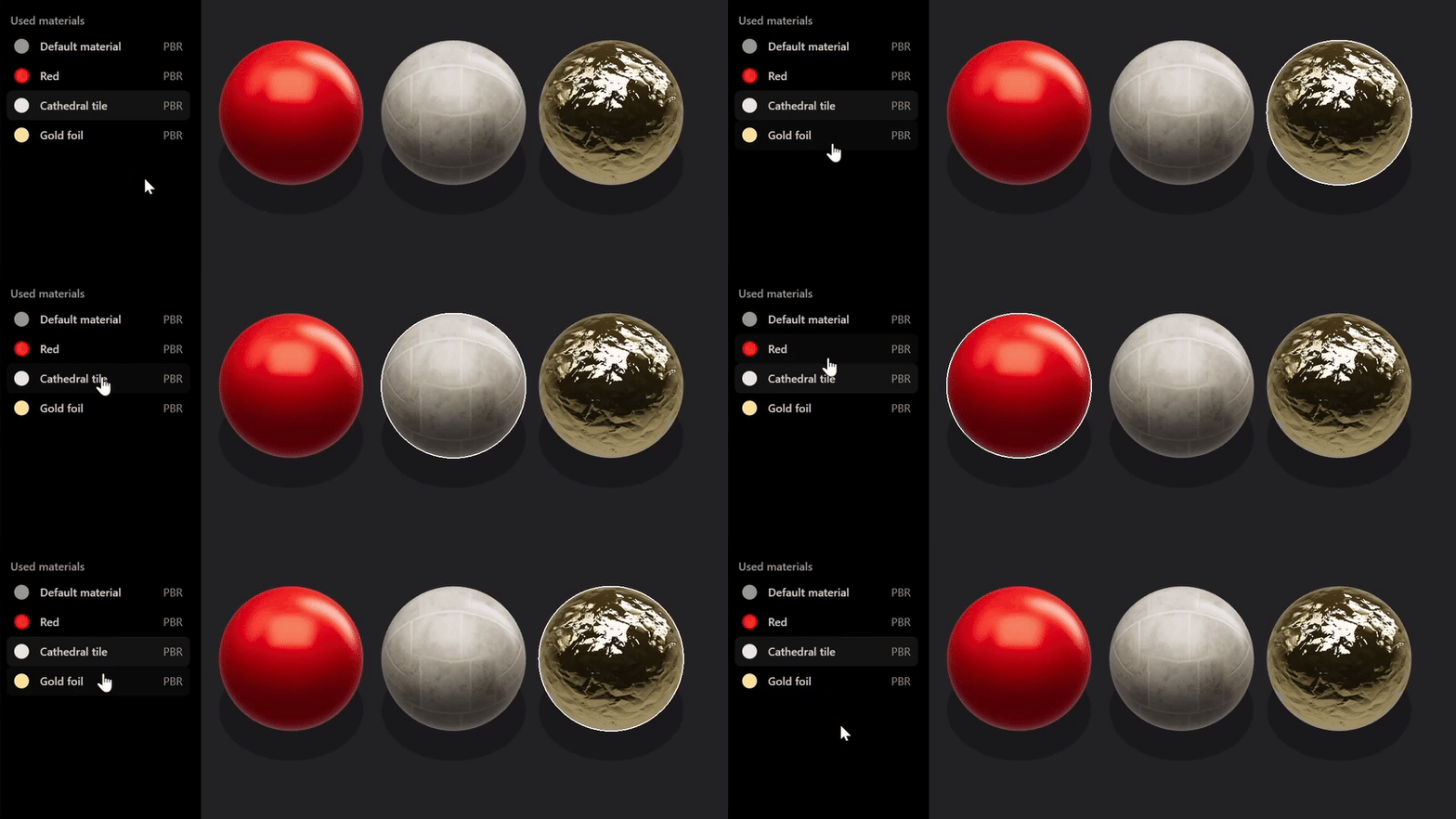
- Highlight Indicator
Hovering over a material in the Assets tab highlights every item that uses that material in the viewport.
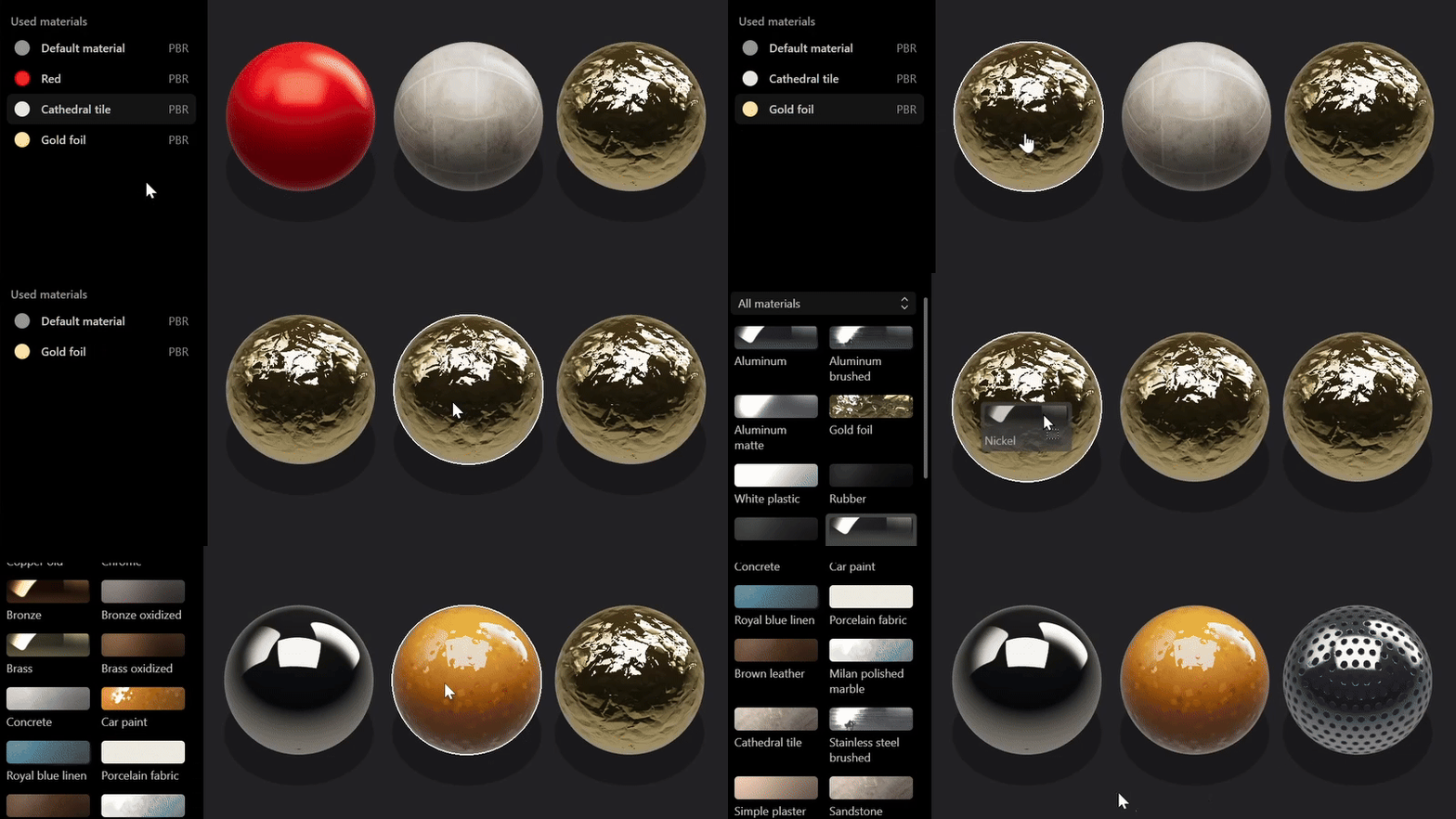
- Drag and Drop Material
You can now drag a physical material from the Material Library in the Assets menu directly onto an object in the viewport. It's a feature that wasn't available in earlier versions of Plasticity.
Export OBJ
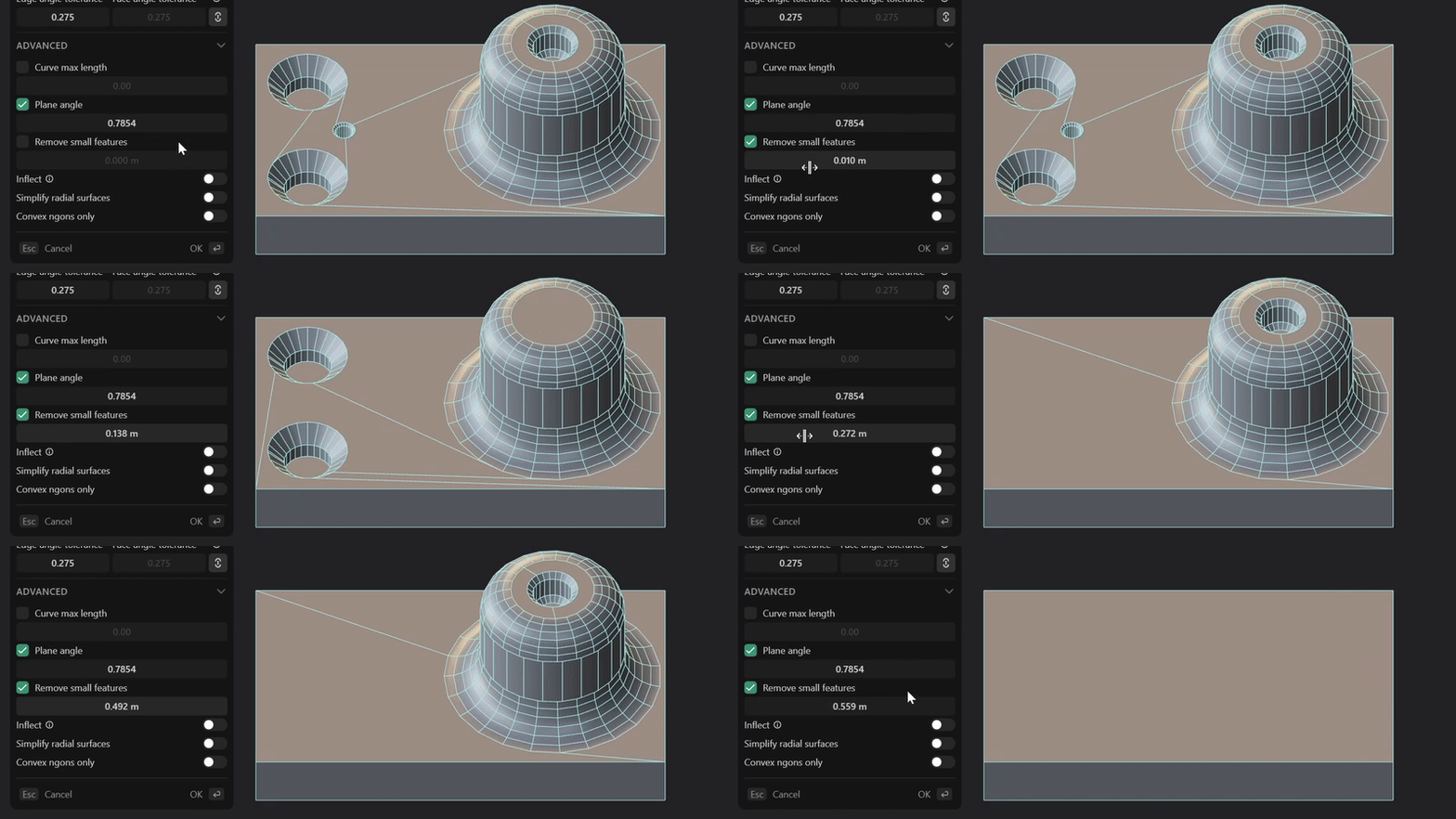
- Remove Small Features
This option lets you define a range that will remove surface details based on the numerical value. It's especially handy for high-poly to low-poly workflows, where texture baking and topology optimisation is involved, or any general mesh cleanup.
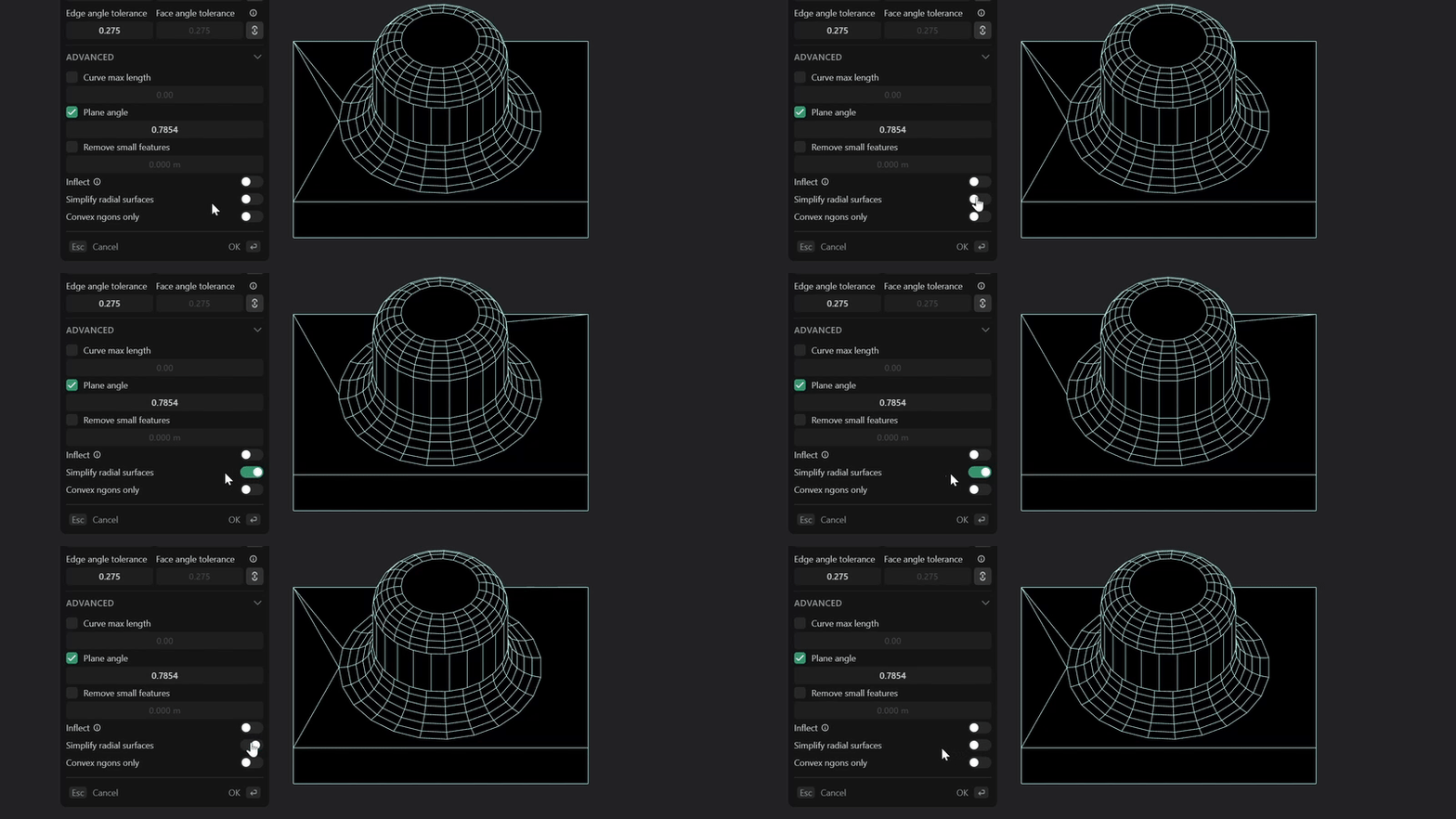
- Simplify Radial Surfaces
When possible, this feature simplifies radial geometry and aligns edge flow so that edges remain continuous rather than broken. It works best on relatively simple shapes; complex geometry may not always achieve perfect results.
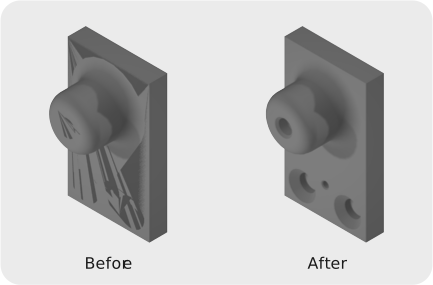
- Ngon optimization
If the topology mode is set to Ngons, enabling Convex Ngons Only prevents the creation of concave ngons. This helps when exporting to applications such as RizomUV, 3ds Max, etc., which struggle with concave ngons and can produce incorrect normals or shading artifacts. While the export may contain slightly more ngons, the resulting shading and overall topology quality are more reliable.
- Export Empty and Instances
The Export OBJ command now supports exporting empty meshes (e.g., STL, FBX, OBJ) and instances. Instances that haven't been converted into real bodies are included in the export. If nothing is selected, everything visible in the viewport will be exported.
5. Improved Features
Viewport
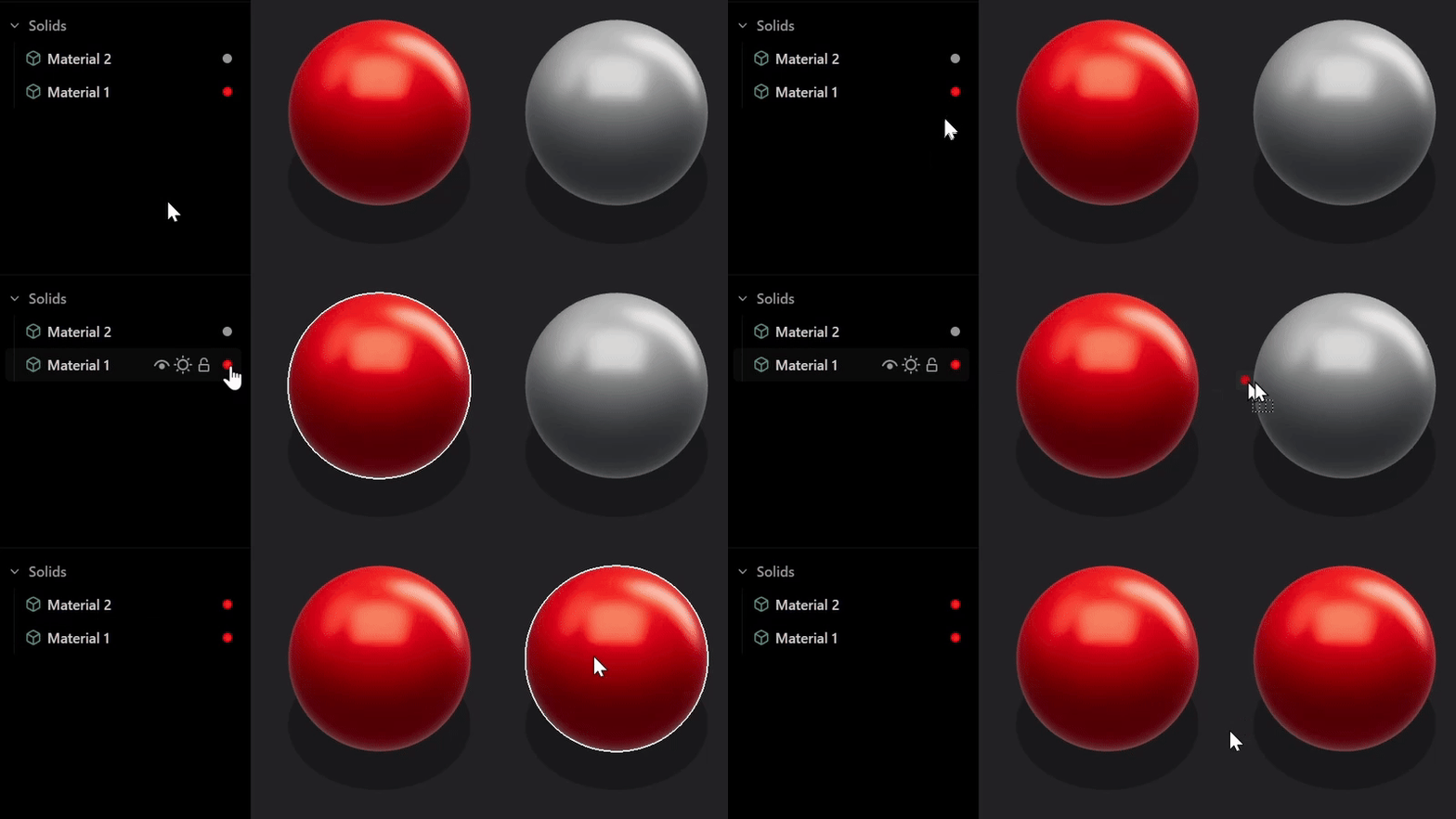
- Drag and Drop Material
You can now drag a material dot from the Outliner straight into the viewport. This provides an alternative to the traditional method of dragging a material dot onto another object while staying inside the Outliner.
Mesh Objects
- Origin Pivot
You can now manipulate mesh (e.g., STL, FBX, OBJ) objects' pivot points and save their location as desired.
Preferences
- Improved Faceting Setting
Change faceting density without restarting Plasticity. This setting applies to new bodies and edits; existing bodies will not be refaceted.
6. Improved Commands
Array Commands
- Array Instances, Meshes and Images
It is now possible to array instances, meshes and images in Plasticity. Possible array commands are listed below.
| Array Commands |
|---|
| Curve Array |
| Radial Array |
| Rectangular Array |
- Make Instances Option
Array commands now have an included option named as "Make Instances".
Learn more - Curve Array, Radial Array, Rectangular Array
Transform
-
Instances and Meshes
Mirror command can mirror meshes (e.g., STL, FBX, OBJ) and instances. -
Mirror Scale on Instances
Applying a scale value of -1 on any axis mirrors the instance along that axis and is fully supported for instance objects.
Measure Curvature
-
New Command Name
Measure Curvature has been renamed to Toggle Curvature. As the name suggests, this command now allows you to toggle the curvature display on and off directly from the outliner under Measurements -> Curvature. -
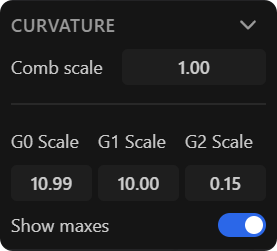
New Panel Menu
Toggle Curvature now features a dedicated panel menu located in the right side panel. Here you can directly adjust the comb size and control visibility using the "Comb scale" option.
- Live Feedback
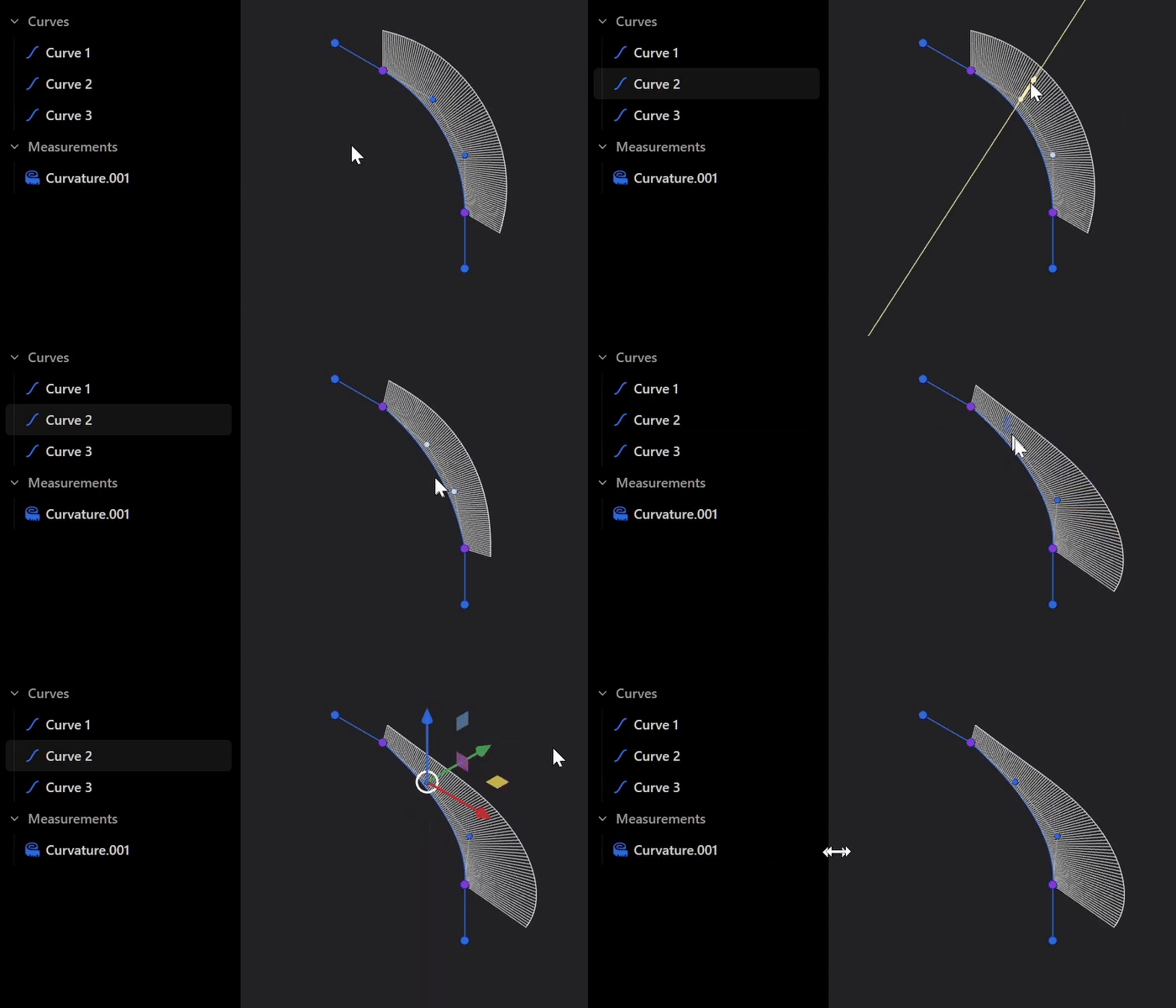
You can now manipulate curves and edges in real time while Toggle Curvature is active, providing immediate visual feedback as you model. This makes it easier to optimize the curvature on a sketch and surface object when working with the Slide command.
- File Compatibility
Files created in version 25.3 can be opened in earlier versions of Plasticity. Any existing curvature measurements will be automatically removed rather than triggering an error.
Measure Continuity
- New Panel Menu
Measure Continuity now features a dedicated panel menu located in the right side panel. You can adjust the continuity comb size for G0/G1/G2 using their respective "Scale" controls and toggle the display of deviation measurement values with "Show maxes".
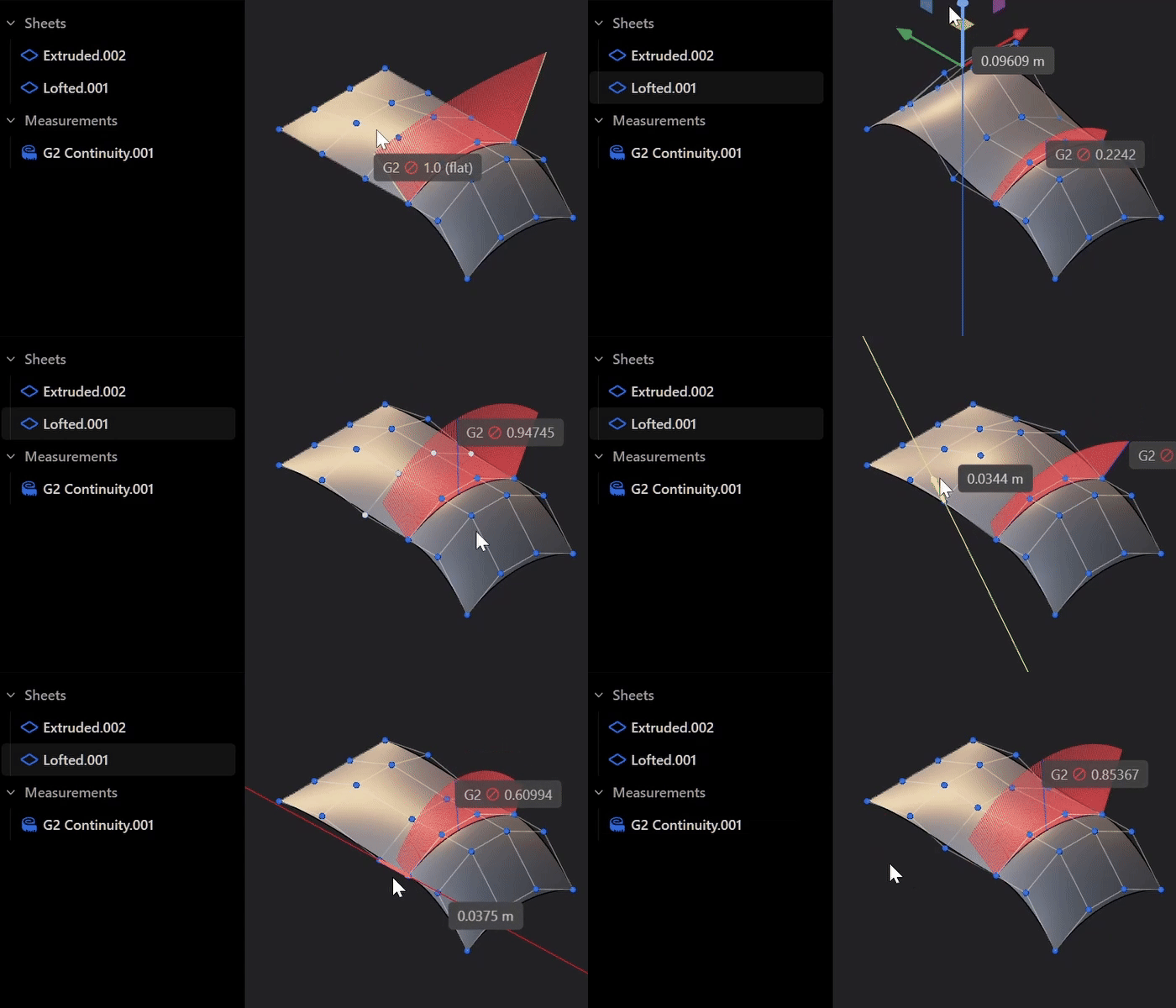
- Live Feedback
Similar to Toggle Curvature, you can now manipulate curves and edges in real time while Measure Continuity is active, providing visual feedback as continuity values update.
Section Analysis
- Mesh Objects
With the Section Analysis command, you can create a virtual slice through meshes (e.g., STL, FBX, OBJ).
Sweep
- Advanced Options
Sweep now includes advanced corner type options: Mitre and Round. When sweeping a curve along a guide with outward corners, Mitre produces sharp turns while Round creates rounded external corners. Note that Round works best with 90-degree corners.
7. Miscellaneous
Shortcuts
- Default Keybinding Removed
The default keybinding for Subdivide (Alt + S) has been removed.
Past Update Information
- July 10, 2025 Version 2025.2