Move
 In Command Bar
Description
Move objects with the Move Gizmo. You can constrain motion to a single axis or use freestyle movement (see details). The pivot point is also adjustable. When you insert a new primitive or sketch object at its initial insertion point, the Move Gizmo and pivot automatically re-orient to align with the object's surface normal.
Basic Usage
- Select the objects you want to move.
- Press G.
- Use the displayed Move Gizmo to move.
- Set the options in the Command Dialog and Keyboard Shortcuts.
-
Command Dialog
-
XYZ: Specify the amount of movement of the X, Y, and Z axes.
-
Orientation: Set the orientation of the move gizmo.
 Normal: Sets the orientation to align with the object's surface normal.
 Pivot: Sets the orientation to match the previously defined pivot orientation.
 Construction Plane: Sets the orientation to align with the active construction plane.
 World: Sets the orientation to align with the global (world) axis.
-
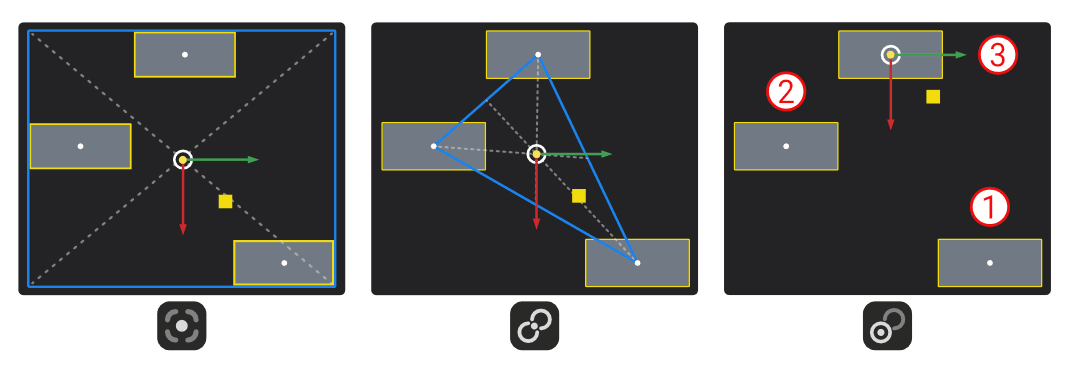
Pivot: Set the position of the pivot point.
 Bbox: Positions the pivot at the center of the bounding box enclosing the selected objects.
 Median: Positions the pivot at the average location of the pivots of the selected objects.
 Active: Positions the pivot at the last selected (active) object's pivot.
-
Advanced:
- Transform instances inversely: Moves only the parent object while keeping any attached instances in place, by automatically applying the inverse transformation to each instance.
-
-
Keyboard Shortcuts
- X/ Y/Z X/Y/Z-axis: Constrain to the X, Y, or Z-axis.
- Shift + X/ Shift + Y/Shift + Z X, Y, Z plane: Constrain to the X, Y, or Z-plane.
- G Screen space: Limit to the visible plane.
- F Freestyle: Click to specify the starting point and endpoint, which will determine the direction and distance of movement.
- V Pivot: Click to specify the position of the Gizmo.
- Alt + V Remove pivot: Remove the configured pivots.
- W Orientation: Change the Gizmo's coordinate axis to different orientations.
-
Command Dialog
- Confirm with OK in the Command Dialog or right-click.
Note:
- To move selected objects to the origin, press: G (Move) > F > right-click > right-click.
- To move an object to the origin based on a selected point, press: G (Move) > F > Click the object's point > right-click.
Freestyle Move
This command is equivalent to the F option of the Move command.
- Select the objects you want to move.
- Use the Freestyle Move command in the Command Palette.
- Click the starting point and endpoint to determine the direction and distance of movement.
- Set the options in the Command Dialog and Keyboard Shortcuts.
- The option is the same as the Move command.
- Confirm with OK in the Command Dialog or right-click.
Move Control Point
Description
Move Control Points that are laid on a surface using Move Gizmo. Options for single-axis constraints or freestyle movement and Proportional Editing are available. The orientation of the Move Gizmo and Pivot placement is also adjustable.
Basic Usage
- Select the objects you want to move.
- Press G.
- Use the displayed Move Gizmo to move.
- Set the options in the Command Dialog and Keyboard Shortcuts.
- Same default options as above in Move.
-
Command Dialog
- Proportional: A feature that provides multiple proportional editing options, influencing how CVs (control vertices) are affected when moved.
- None: No proportional effect; only the selected CVs move.
- All: Affects all CVs on the surface and their movement. Specify the falloff value of U and V for better proportional falloff control.
- Selected: Applies proportional editing to the selected CVs, affecting their movement. Specify the falloff value of U and V for better proportional falloff control.
- Falloff U: Specify the falloff amount in U direction.
- Falloff V: Specify the falloff amount in V direction.
- Mirror: Apply a mirror effect relative to the active construction plane. The mirroring axes adapt to either the global construction plane or a custom defined construction plane.
- None: No mirror plane is specified.
- X/Y/Z: Mirror in either X, Y, and Z axes.
- Proportional: A feature that provides multiple proportional editing options, influencing how CVs (control vertices) are affected when moved.
-
Keyboard Shortcuts
- Same default options as above in Move.
- Confirm with OK in the Command Dialog or right-click.
Note:
- When proportionally editing surface CVs, the last active CV selection determines the pivot position. Keep this in mind, as it affects how proportional editing behaves.
- The Proportional Move command moves control vertices based on UV distance along the hull, rather than geometric distance.
Move Planar Edges
Description
Move planar edges using Move Gizmo. Options for single-axis constraints or freestyle movement and Proportional Editing are available. The orientation of the Move Gizmo and Pivot placement is also adjustable.
Basic Usage
- Select the objects you want to move.
- Press G.
- Use the displayed Move Gizmo to move.
- Set the options in the Command Dialog and Keyboard Shortcuts.
- Confirm with OK in the Command Dialog or right-click.
Move Circular Edges
Description
Move individual Solid and Sheet body edges that are circular while preserving their analytical geometry when offsetting. You can constrain the motion to a single axis or use freestyle movement. Both the orientation of the Move gizmo and the pivot placement are adjustable.
Basic Usage
- Select a circular edge.
- Press G.
- Drag the displayed Move gizmo to reposition the edge.
- Adjust the options in the Command Dialog or via keyboard shortcuts.
- Confirm with OK in the Command Dialog or right-click.