Publish To Plasticity Share
CommandPublish To Plasticity Share
Shortcut—
Button In Command Palette
In Command PaletteAvailable in
IndieStudio
Description
Uploads a (.plasticity) file to the cloud and generates a unique private URL that opens in a new browser tab. The link can be shared with anyone for read-only viewing. Once the link is shared, it becomes public. Each uploaded document supports multiple revisions; you can manage and delete these revisions on the Plasticity Share (opens in a new tab) page.
💡
- Only the mesh representation of the model is published so no CAD geometry or source files are included and the file cannot be downloaded.
- The feature is disabled by default. Enable it via Preferences > Web Publishing.
- Publish to Web also exports material information from the Assets menu.
- Mesh data is view-only; direct modeling or modification of the published mesh is not possible.
- Regardless of license type, every user receives 5 GB of cloud storage.
Basic Usage
- Select the object you want to publish to the web.
- Open the Command Palette, type Publish To Plasticity Share, and execute the command.
- A pop-up window appears asking, "Are you sure you want to share to the web?" Click Yes.
- A new browser tab opens displaying the published object.
- A unique URL is generated for the shared object.
Web Viewport Interface
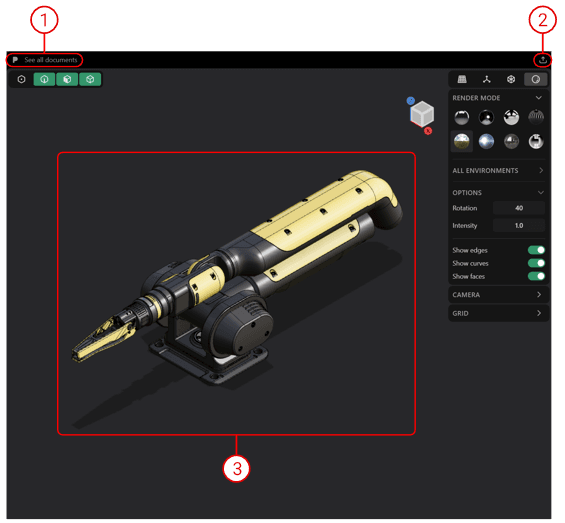
| Number | Element | Description |
|---|---|---|
| 1 | See all documents | See all of published documents on the Cloud server. |
| 2 | Sign Out | Sign out from the current web session. When signed out, a message will be displayed -> "Not signed in. Share a document from Plasticity and refresh this tab to sign in." |
| 3 | Mesh Data | Selected object from Plasticity has been converted into a mesh data for visualization purposes. |
💡
Viewport navigation on the web uses Plasticity's default controls: Middle Mouse Button to orbit and Right Mouse Button to pan. The right-side panel provides access to Shader Mode, Render Mode, Camera, Grid and Unit settings.
All Documents Interface
This is the Plasticity Share page, where you can view all documents you have uploaded to the cloud server.
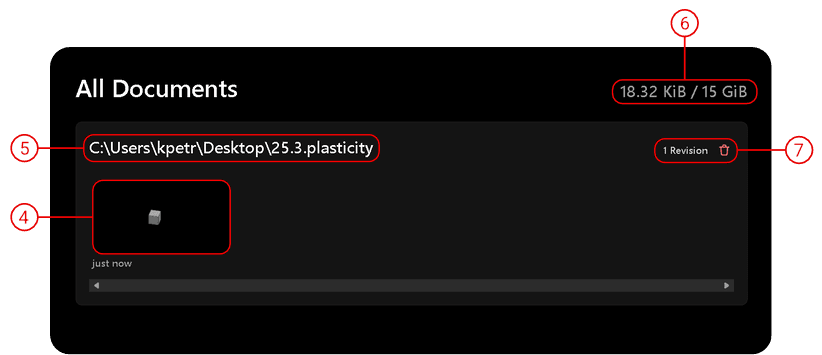
| Number | Element | Description |
|---|---|---|
| 4 | Document Thumbnail | Preview image representing the document's contents. |
| 5 | Document Location | Local directory path on the PC where the Plasticity document resides. |
| 6 | Cloud Storage Indicator | Shows remaining cloud storage. |
| 7 | Revision Indicator | Displays how many revisions have been updated on the web. |